
Multi-factor authentication
Verify yourself with an emailed one-time password or an authenticator app (TOTP) when logging in and on sensitive actions
Security is one of PayMongo's top priorities: keeping both merchants and customers safe from fraudulent and high-risk behaviors. To help keep your account secure, we've added the Multi-factor Authentication (MFA) feature on our platform as an added measure.
You will now be prompted to prove your identity via Multi-factor Authentication (MFA) to gain access to the following features of your PayMongo dashboard:
- Dashboard Login
- Forgot your password feature
- Updating account details - change email, phone number, account password
- Updating of registered bank account details
- Turning login notifications on or off
- Removing a passkey
- Sending funds from your wallet
- Locking or unlocking your wallet
Verification methods
| Method | How it works | Availability |
|---|---|---|
| Email OTP | A one-time password is sent to your registered email address. | Default for every account |
| Authenticator app (TOTP) | A 6-digit code that changes every 30 seconds, generated by an app on your phone or browser. | Optional — set it up in Profile → Security |
| Recovery codes | 10 single-use codes issued when you set up an authenticator app, for when you don't have your device. | Issued with the authenticator app |
Setting up an authenticator app adds it on top of your emailed OTP for the eligible actions — it doesn't turn email verification off. At each prompt you choose which one to use, and email stays available as a fallback. A few actions accept only an emailed OTP or SMS; see Where your authenticator app is used.
Email OTP
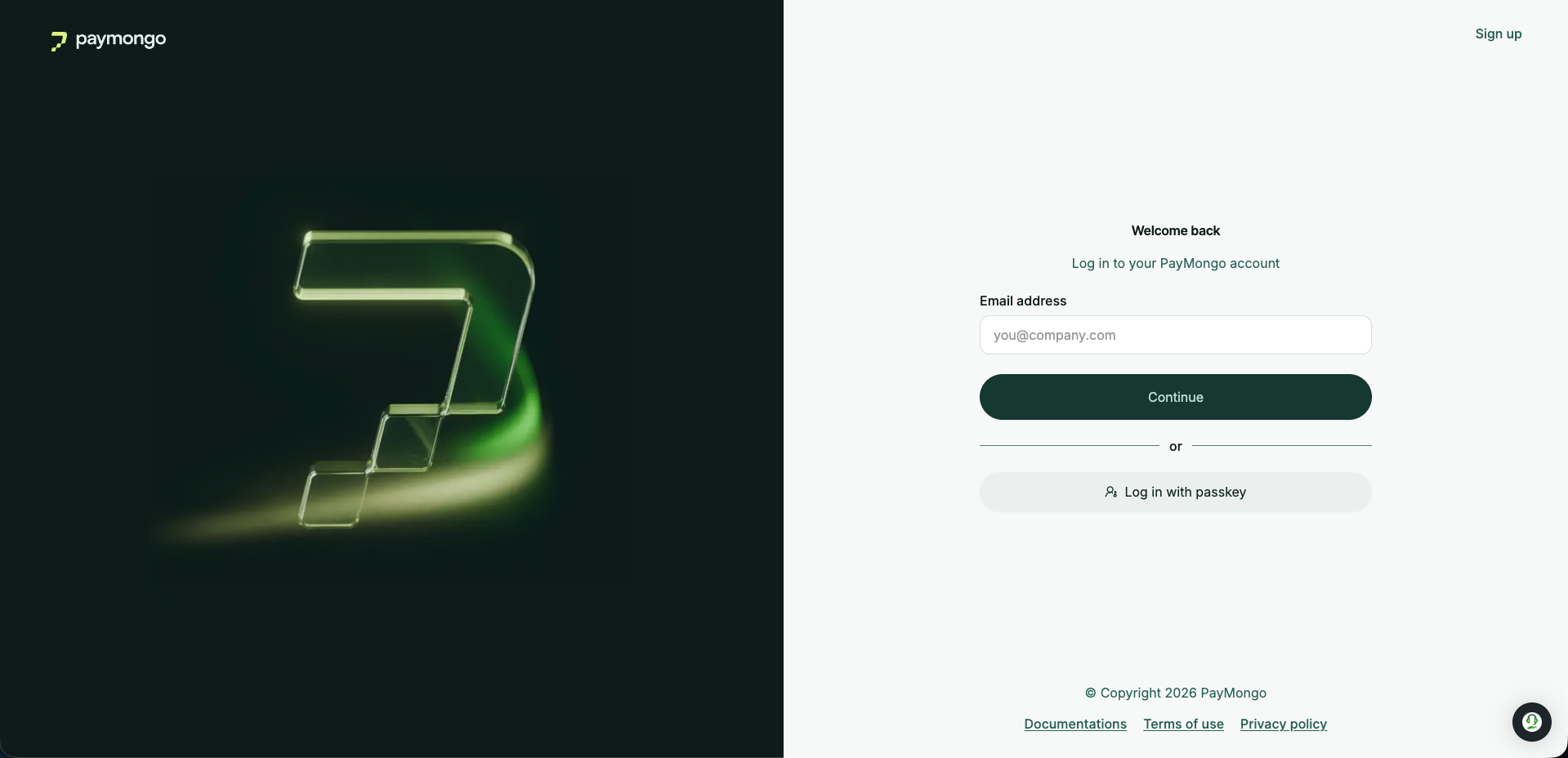
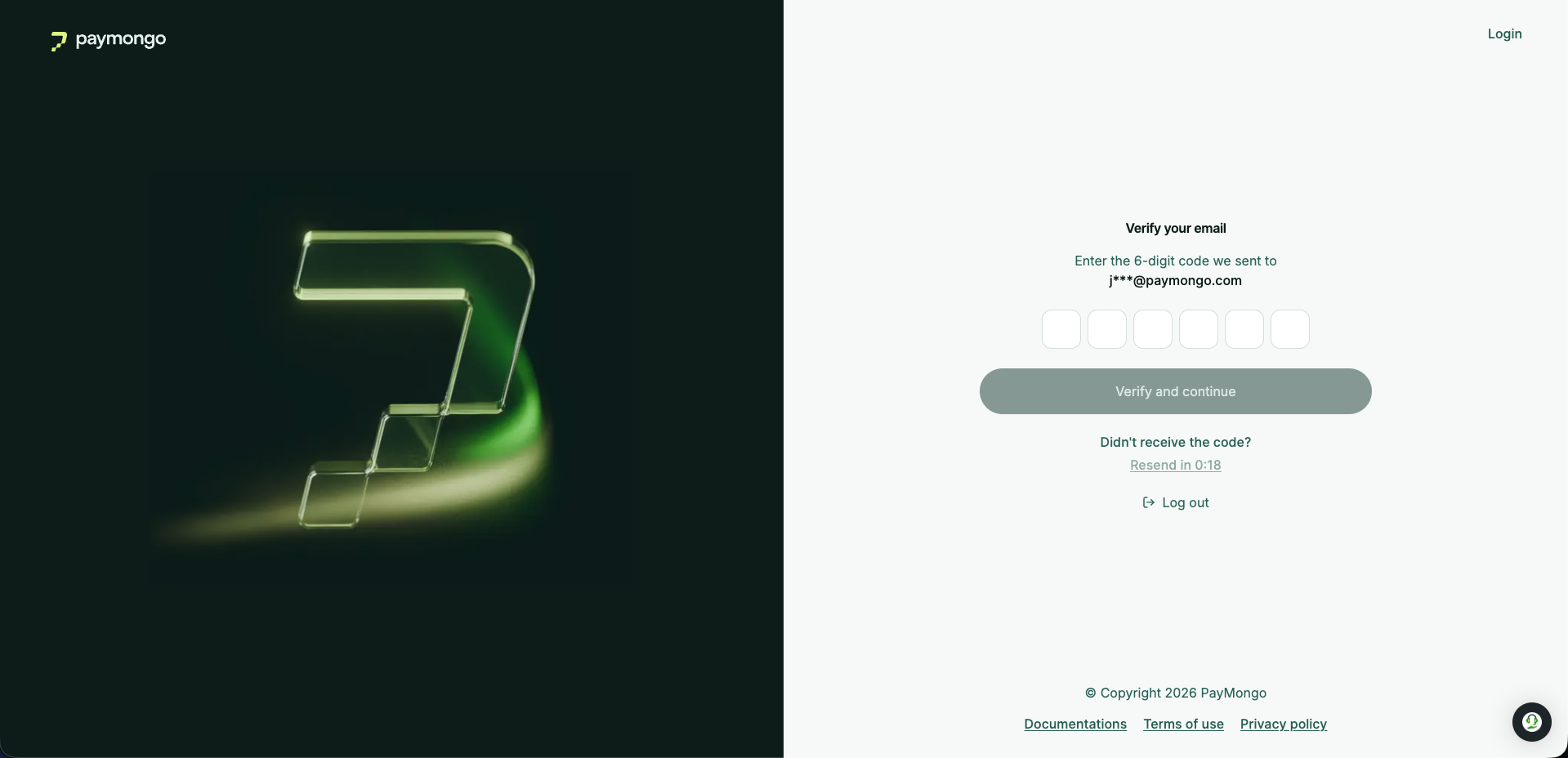
Here's what the MFA prompt would look like when logging in to your dashboard:
-
You would first need to input your account's email address and password then click on log in.
-
The MFA window would then appear, prompting you to input your OTP.
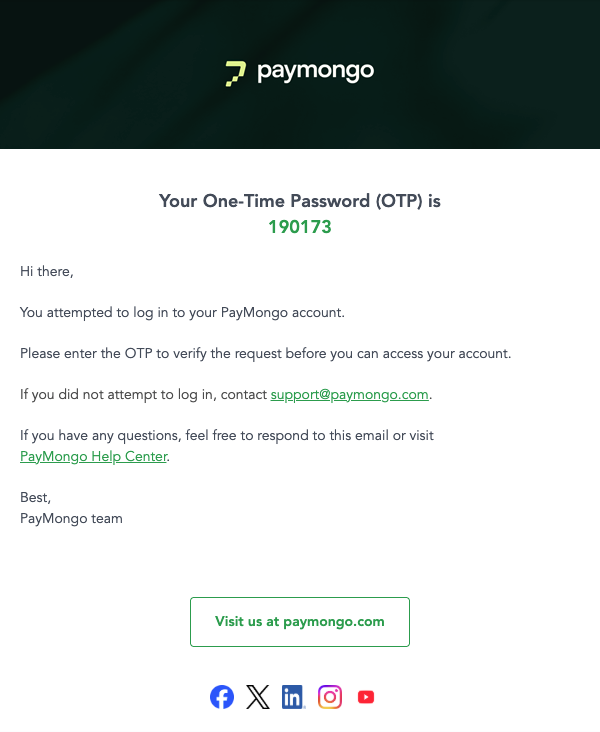
- Once your OTP has been verified, you can access your PayMongo dashboard.
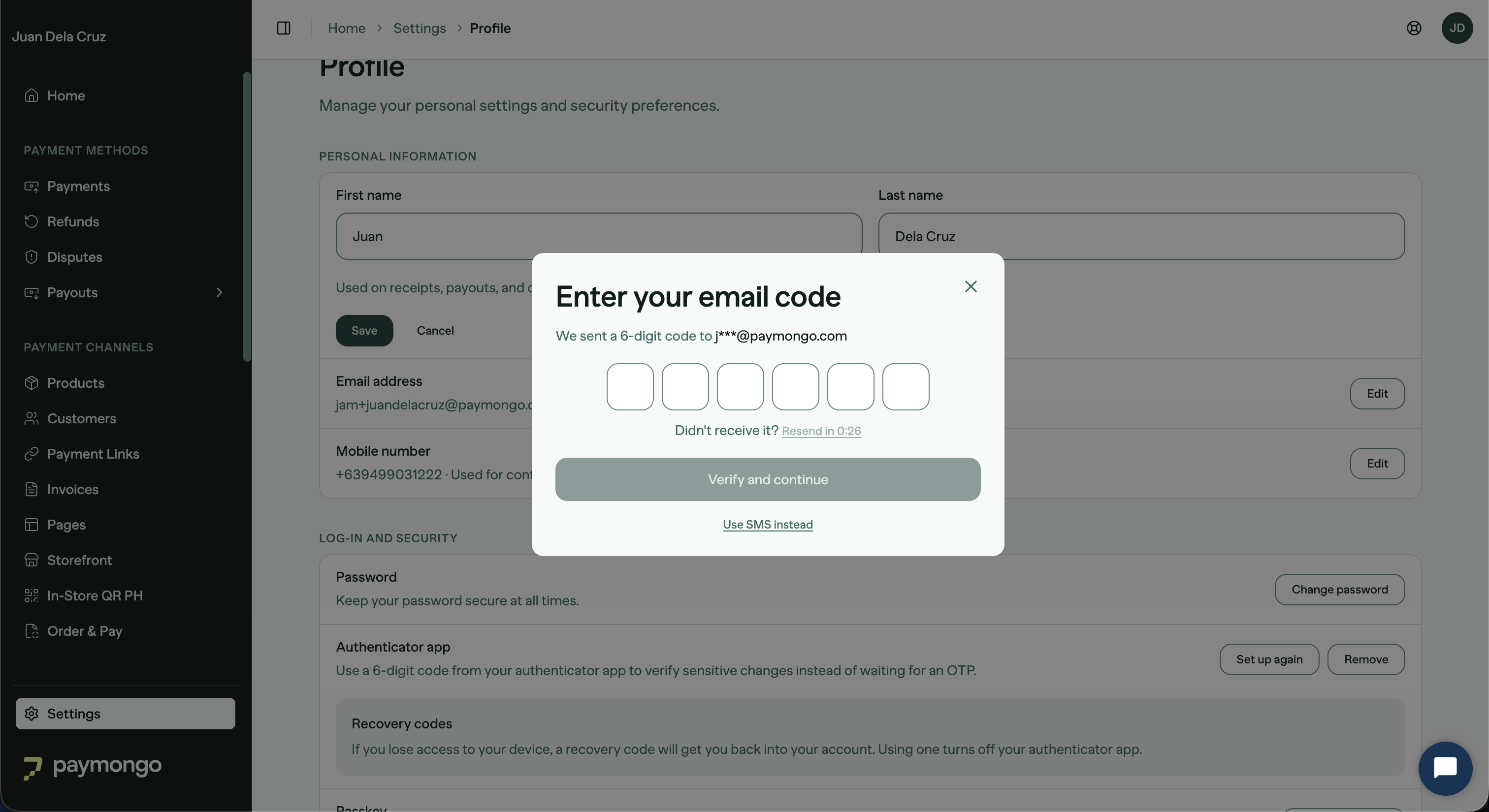
Here's what the MFA prompt would look like when changing an account detail on your settings dashboard:
Authenticator app (TOTP)
An authenticator app generates a 6-digit code that changes every 30 seconds. Add one to your PayMongo account so you can verify yourself with that code instead of waiting for a one-time password to arrive by email.
Once set up, the authenticator app becomes an additional verification option at login and on sensitive actions such as changing your password, turning login notifications on or off, and sending funds from your wallet. Your emailed OTP keeps working, so you're never forced to use one or the other. You also get 10 single-use recovery codes to get back in if you lose your device.
You are not locked out if you lose your phone.Log in with a recovery code, or remove the authenticator with your account password — removal never requires a code.
Before you start
- Install an authenticator app on your phone or browser. PayMongo supports any TOTP app, including Google Authenticator, Microsoft Authenticator, Authy, and 1Password.
- Have a safe place to store your recovery codes (a password manager, or printed and locked away). You see them only once.
Set up your authenticator app
-
Go to Profile → Security in the merchant dashboard.
-
Find Authenticator app and click Set up. (If you started before and didn't finish, the button reads Finish setup.)
-
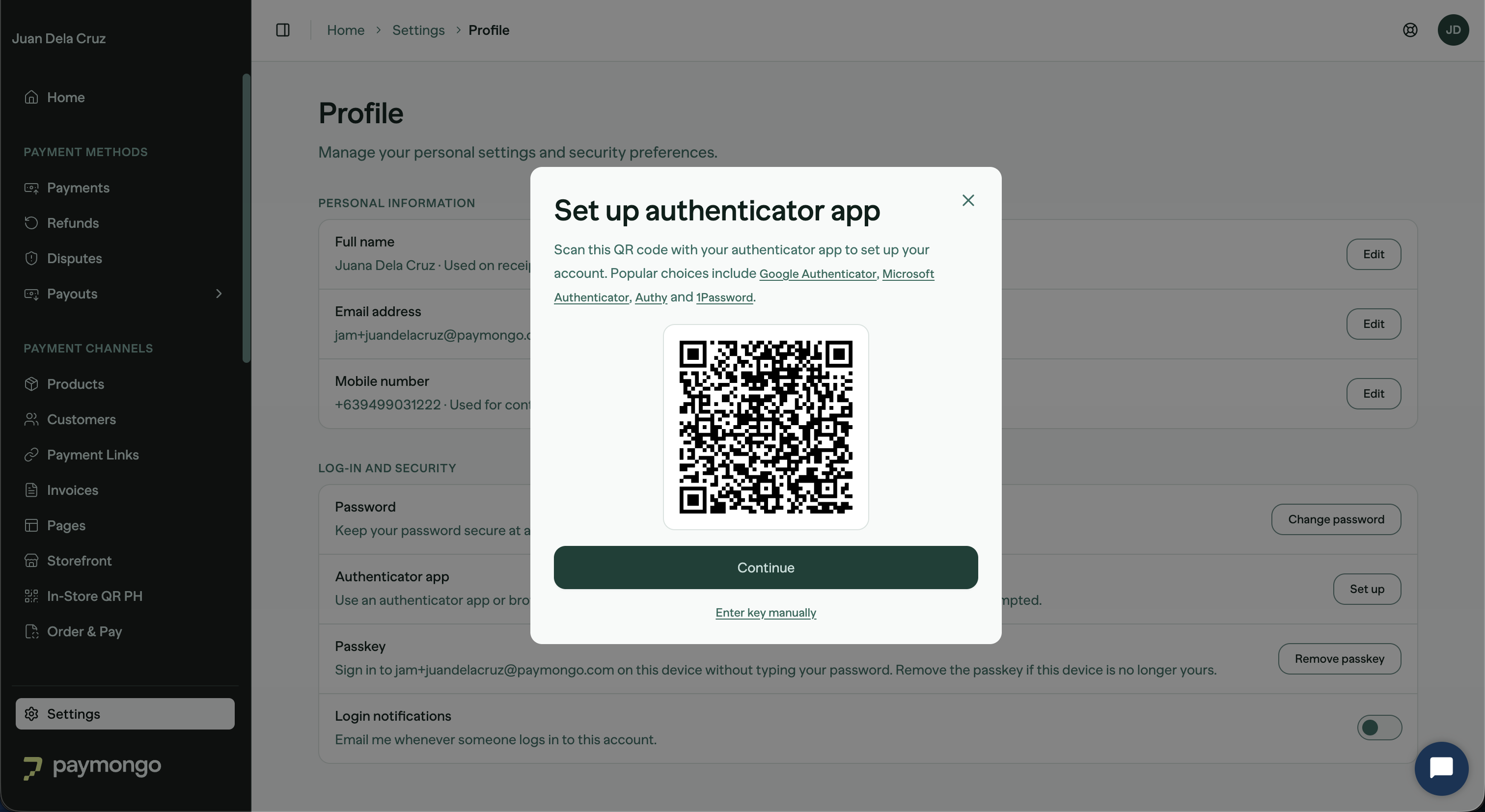
On Set up authenticator app, open your authenticator app and scan the QR code.
-
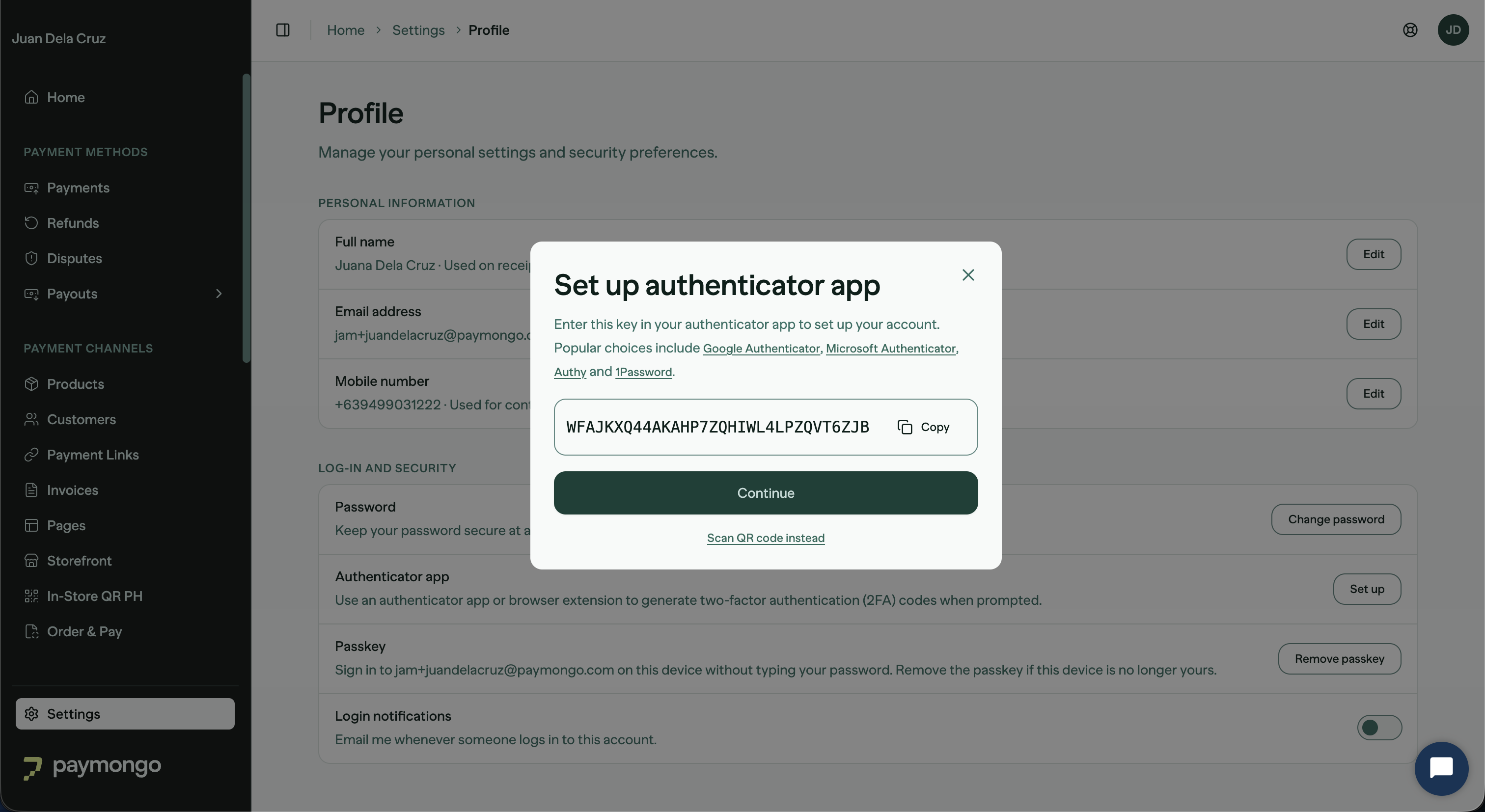
Can't scan? Click Enter key manually, then copy the setup key into your app. Click Scan QR code instead to switch back.
-
-
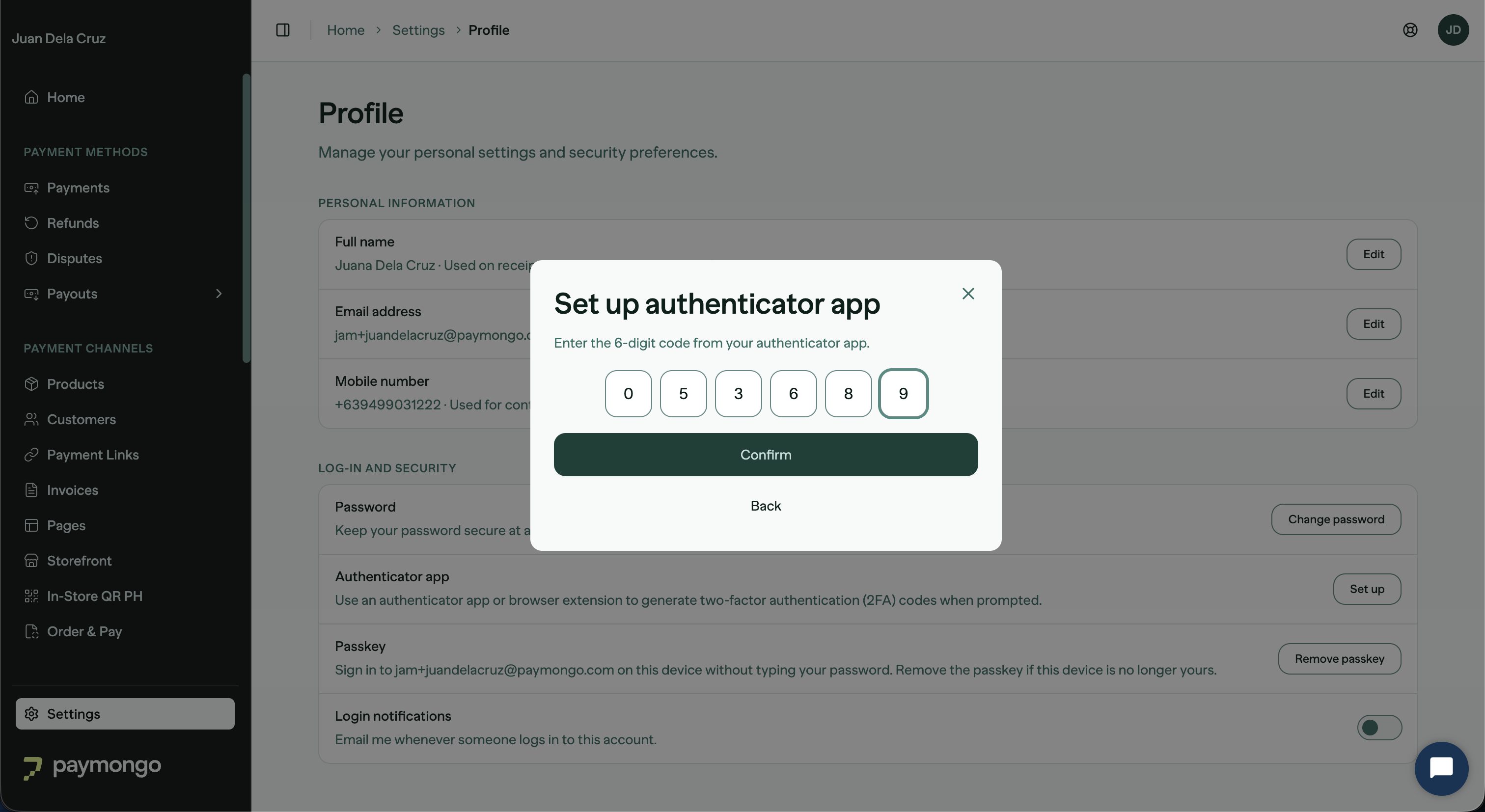
Click Continue, then enter the 6-digit code your app shows and click Confirm.
-
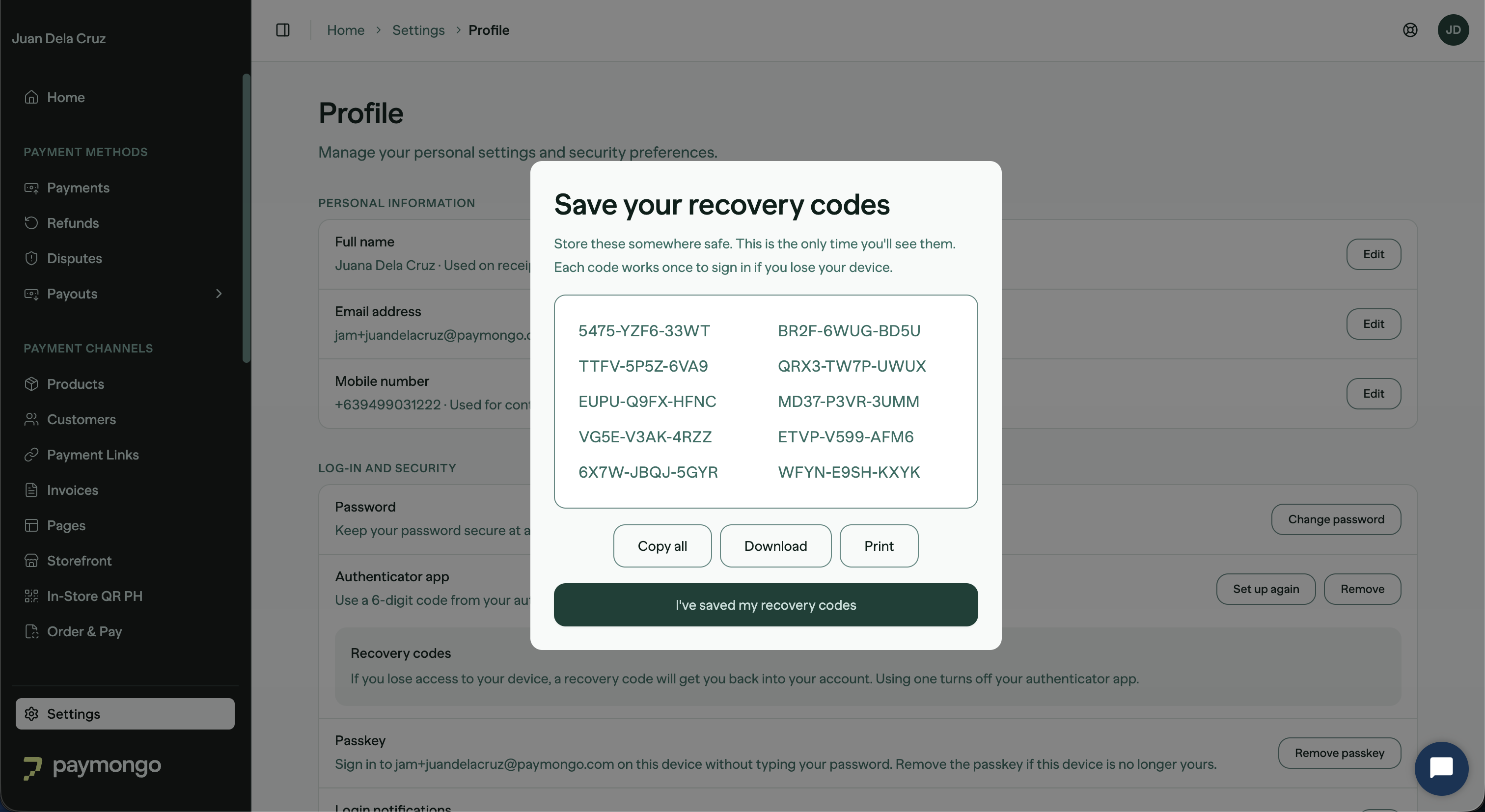
On Save your recovery codes, copy, download, or print your 10 codes and store them somewhere safe.
-
Click I have saved my recovery codes to finish.
You'll see: "You can now use your authenticator app for verification."
Recovery codes
Your recovery codes are shown only once, at setup. Each code works one time.
- Save them with Copy all, Download (saves
paymongo-recovery-codes.txt), or Print. - A code looks like
RFUR-XUEW-3SYB— dashes and letter case don't matter when you type it. - Using a recovery code at login turns off your authenticator app and voids the remaining codes. Set the app up again afterward to keep using the authenticator.
There is no "regenerate codes" button.To get a fresh set, use Set up again, which replaces your old codes.
Log in with your authenticator app
When you log in, PayMongo asks for a verification code. If your authenticator app is set up:
- Choose Use authenticator app instead and enter the 6-digit code, or
- Choose Email me a code instead to receive an OTP by email, or
- Choose Use recovery code instead if you don't have your device.
Where your authenticator app is used
After setup, the authenticator app is offered in addition to the emailed OTP on the actions below. You enter one code, not two — pick whichever method you prefer at the prompt.
| Action | Where | Accepted verification |
|---|---|---|
| Logging in | Login screen | Authenticator, email OTP, or recovery code |
| Expired password (change or waive) | Login screen | Authenticator or email OTP |
| Updating your personal information | Profile | Authenticator, email OTP, or SMS |
| Changing your email address | Profile | Authenticator, email OTP, or SMS — plus your account password |
| Changing your password | Profile → Security | Authenticator, email OTP, or SMS — plus your account password |
| Turning login notifications on/off | Profile → Security | Authenticator, email OTP, or SMS |
| Removing a passkey | Profile → Security | Authenticator by default, email OTP if you don't have one |
| Sending funds / wallet transfers | Wallets → Send funds ("Verify this transfer") | Authenticator, email OTP, or passkey — SMS is not accepted |
| Batch transfers / bulk payouts | Wallets → Batch transfers | Authenticator, email OTP, or passkey |
| Locking or unlocking your wallet | Wallets ("Lock" / "Unlock") | Authenticator, email OTP, or passkey — SMS is not accepted |
Two actions don't accept an authenticator code — they always verify by emailed OTP or SMS, even when you have an authenticator app set up:
| Action | Where | Accepted verification |
|---|---|---|
| Regenerating API keys | Developers | Email OTP or SMS |
| Updating your payout bank account | Account settings | Email OTP or SMS |
Replace or remove your authenticator app
Both options are in Profile → Security → Authenticator app and require your account password.
- Set up again — replaces the current authenticator and issues a new set of recovery codes. Your old authenticator and old codes stop working immediately.
- Remove — turns off the authenticator app and returns you to email OTPs. "You'll go back to receiving one-time passwords by email, and your recovery codes will stop working."
Lost your device?
- At login, choose Use recovery code instead and enter one of your saved codes. This logs you in and turns off the authenticator.
- Once in, go to Profile → Security and either Set up again with a new device, or leave the authenticator off and keep using email OTPs.
- No recovery codes either? Go to Profile → Security, click Remove, and confirm with your account password.
Recovery codes work at the login prompt only. On sensitive actions inside the dashboard, choose the emailed OTP (or SMS, where offered) instead — or remove the authenticator with your account password, which never needs a code.
Troubleshooting
| Problem | What to do |
|---|---|
| "That code didn't work." | Set your phone's date and time to update automatically, then try the newest code. Authenticator codes depend on your device clock. |
| Code keeps failing | Each code is single-use — enter the next code your app shows, not the one you already tried. |
| "Too many incorrect codes." | Wait for the on-screen timer, then try again. Your account is not locked. |
Next steps
- API Keys — Generate and manage your API keys securely
- Security Logs — Monitor account activity and detect unauthorized access
- Account Setup — Create and activate your PayMongo account
Reach out to [email protected] if you're having any trouble with your Multi-factor authentication for assistance.
Updated 1 day ago