
Customer Support
Reach out to the team for needed support and track all updates regarding your inquiries through your PayMongo Dashboard.
This guide shows you how to contact PayMongo support through the chat widget and track your ticket updates in the Dashboard.
How to use this guide
| Use Case | Start here |
|---|---|
| Want to reach out to the PayMongo team | Reach the Team |
| Need to check on an update on your ticket | Track a Ticket's Status |
Customer support ticket journey
flowchart LR
  A[Reach out via chat widget/email] --> B[Ticket created]
  B --> C[Ticket update sent]
  C --> D[Ticket update recorded in 'My Tickets' page]
  D --> E[Ticket status reviewed]
  E --> F[Ticket closed]
Chat Reach Out
Reaching out via the dedicated chat widget opens a new chat session for assistance regarding your PayMongo account and all its features.
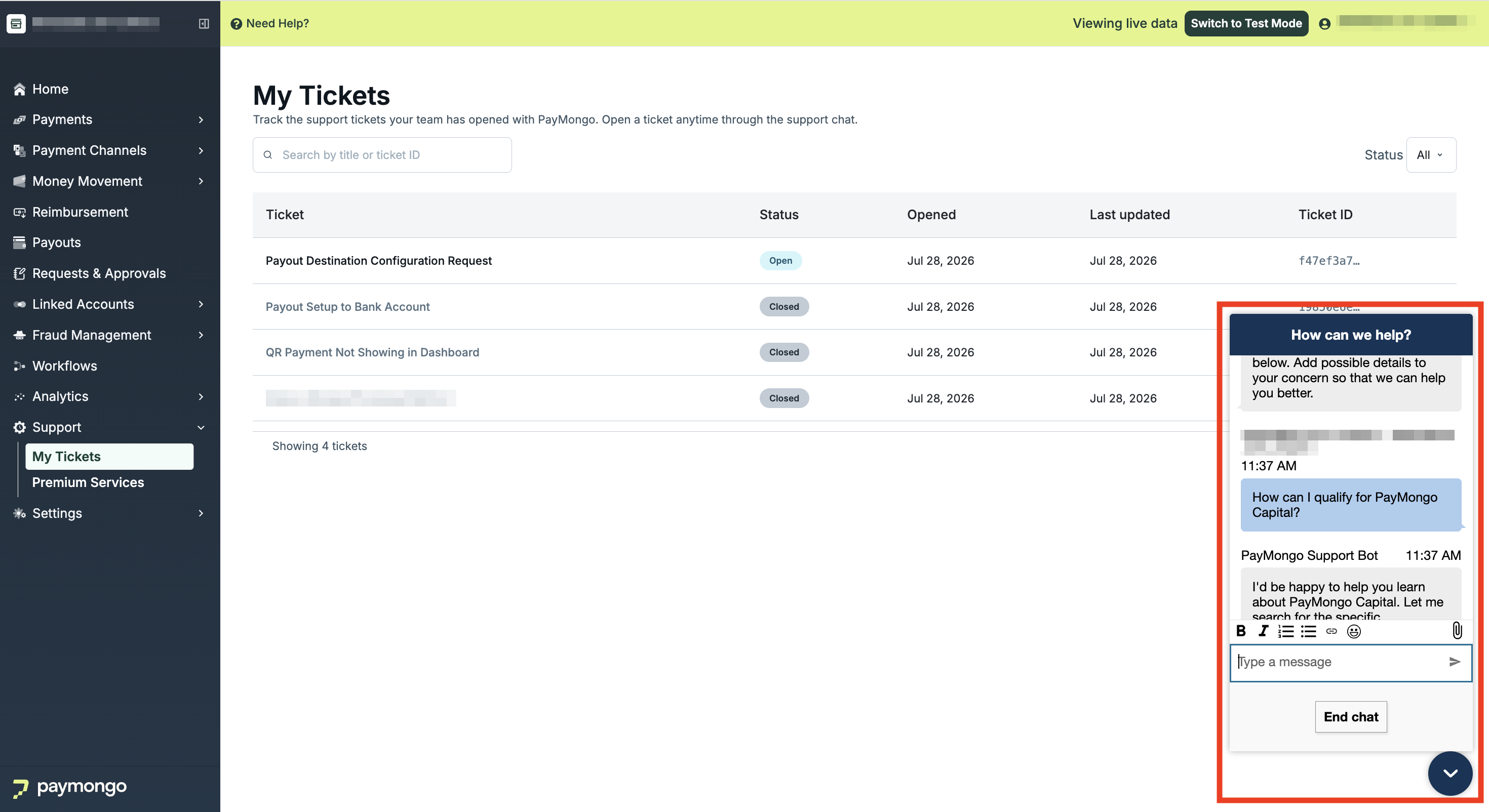
Sending a chat message:
- Proceed to your PayMongo Dashboard.
- Click the chat widget at the lower right of your dashboard and describe your concern.
- Our support assistant along with our Customer Success team will help you with your concern.
Track Ticket Activity
Notable Updates to our Ticket UpdatesFor our out of chat session updates, an email with the subject template - Re: [Ticket ID] Ticket Title Update - will be sent containing updates on your ticket. These updates can be seen on the "Activity" timeline of the corresponding ticket
Tracking "Open" tickets have never been made easier with the dedicated "My Tickets" page for a full view of all activities on all recorded tickets.
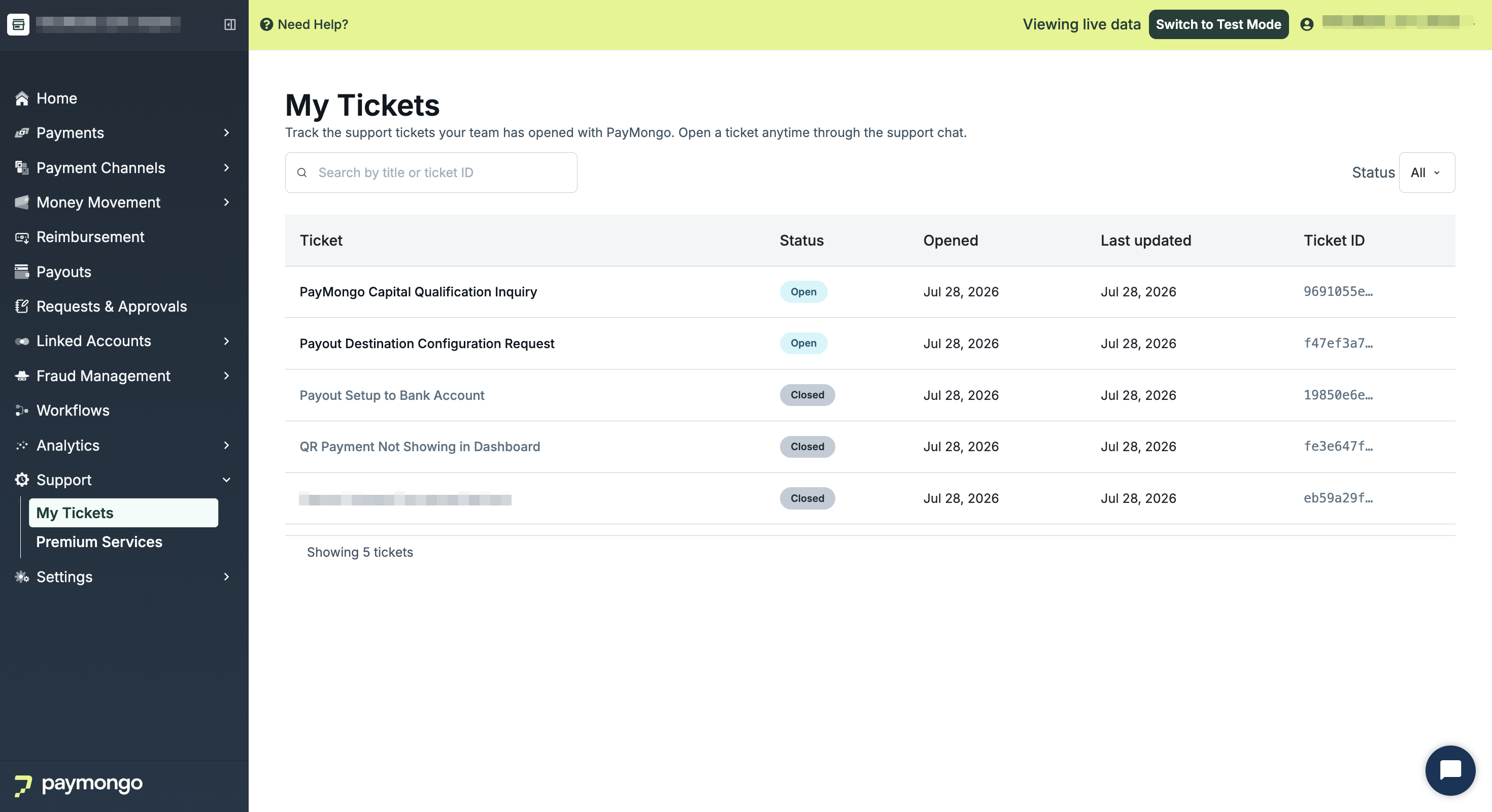
Tracking your tickets via the PayMongo Dashboard:
- Proceed to your PayMongo Dashboard.
- On the side-bar, click on Support → My Tickets.
- Search for your ticket on the search bar.
- Click on the chosen ticket.
- View the ticket timeline via the Activity Timeline.
Updated about 2 months ago