
Manage Sent Invoices
Track payment, void an invoice, download PDFs, export your list, and control who has access.
Track payment from your dashboard
Monitor all invoices from Payment Channels → Invoices. Statuses update automatically as your customer acts on the invoice or as the due date passes. When payment is completed, the transaction is recorded in your dashboard and your customer receives a payment confirmation.
The list shows Invoice, Customer, Source, Amount, Due date, Status, and Reminders. Source tells you where an invoice came from: One-time for one you created yourself, or Cycle 3 of 12 for one a schedule generated, which links back to the repeating invoice that produced it.
Two tabs sit above the list. All invoices is every invoice, including each cycle a schedule has already sent. Repeating is the schedules themselves, one row per schedule rather than one per invoice. The Repeating tab appears once repeating invoices are enabled for your organization.
If an invoice looks like a duplicate
If you create or send an invoice that matches one from the last few minutes (same customer, same amount, same line items), PayMongo pauses and asks first, naming the invoice it matches:
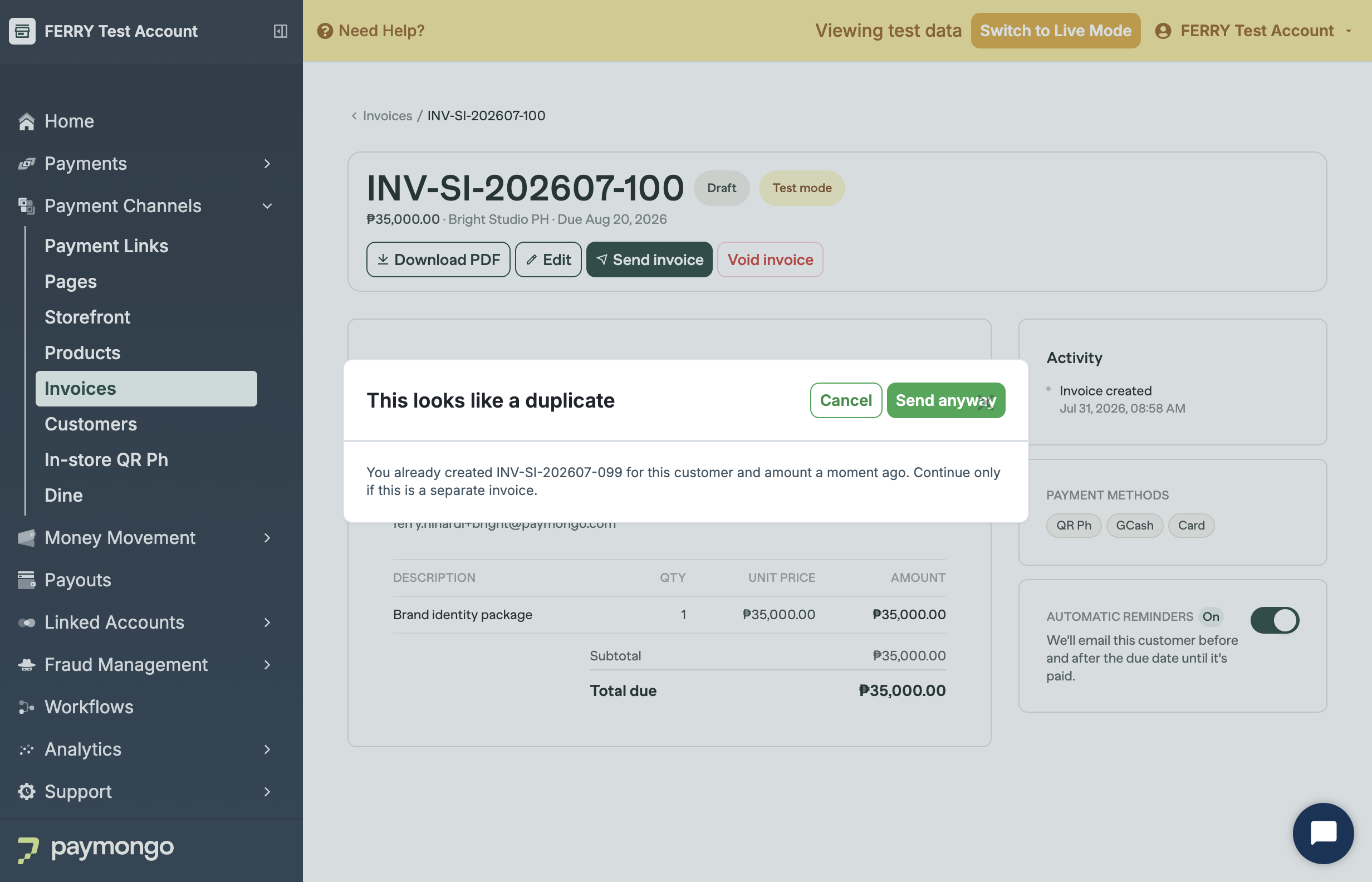
Choose Send anyway if it really is a separate invoice, or Cancel to go back. This catches the double-click and the accidental resubmit, so your customer is never billed twice for the same thing.
Cancel an invoice
Sent an invoice by mistake, or no longer need it paid? Open it and click Void invoice. A voided invoice can't be paid and its payment link stops working. Voiding can't be undone, so create a new invoice if you still need to bill the customer.
Download a PDF
Every invoice can be downloaded with the Download PDF button on its detail page, and your customer can download the same PDF from their payment page. It shows the full breakdown, with line items, totals, due date, and your branding.
Export your invoices
On the Invoices page, click Export to download your invoice list as a CSV for your own records or reconciliation. The file keeps the original eight columns in order: Invoice Number, Status, Customer Name, Customer Email, Total (PHP), Issue Date, Due Date, and Paid At. Internal Notes is appended next. It is merchant-only and never appears on the hosted invoice page, PDF, email, or payment description.
The export also includes Message to Customer, Line Items, Payment Link, and Payment Method when available, for thirteen columns in total. Line Items puts every line on one invoice into a single cell, one line each, written as quantity, description, and unit price. Payment Method fills in only once the invoice is paid. Customer TIN is not included.
Use the status tab and search box to narrow what is exported. The file includes every invoice that matches your current filters, up to 10,000. Above that the download is refused and you are asked to narrow the filters.
Read internal notes through the API
Internal notes are merchant-only. They never appear on the hosted invoice page, PDF, customer email, or payment description. Your own systems can read them with your secret key on authenticated invoice routes such as GET /v1/invoices/:id and the invoice list.
Example fragment from a merchant read:
{
  "data": {
    "id": "in_abc123",
    "notes": "Thank you for your business!",
    "internal_notes": "Net-14 terms agreed with finance"
  }
}
The customer-facing GET /v1/invoices/by-slug/:slug route returns "internal_notes": null even when the invoice has a value, so the field cannot leak to your customer. See the Retrieve an invoice API reference for the full response schema.
Control who can manage invoices
Invoice access is granted per team member. Go to Settings → Team members, invite or edit a member, and tick Manage Invoices to let them view, create, send, void, export, and bulk-import invoices:
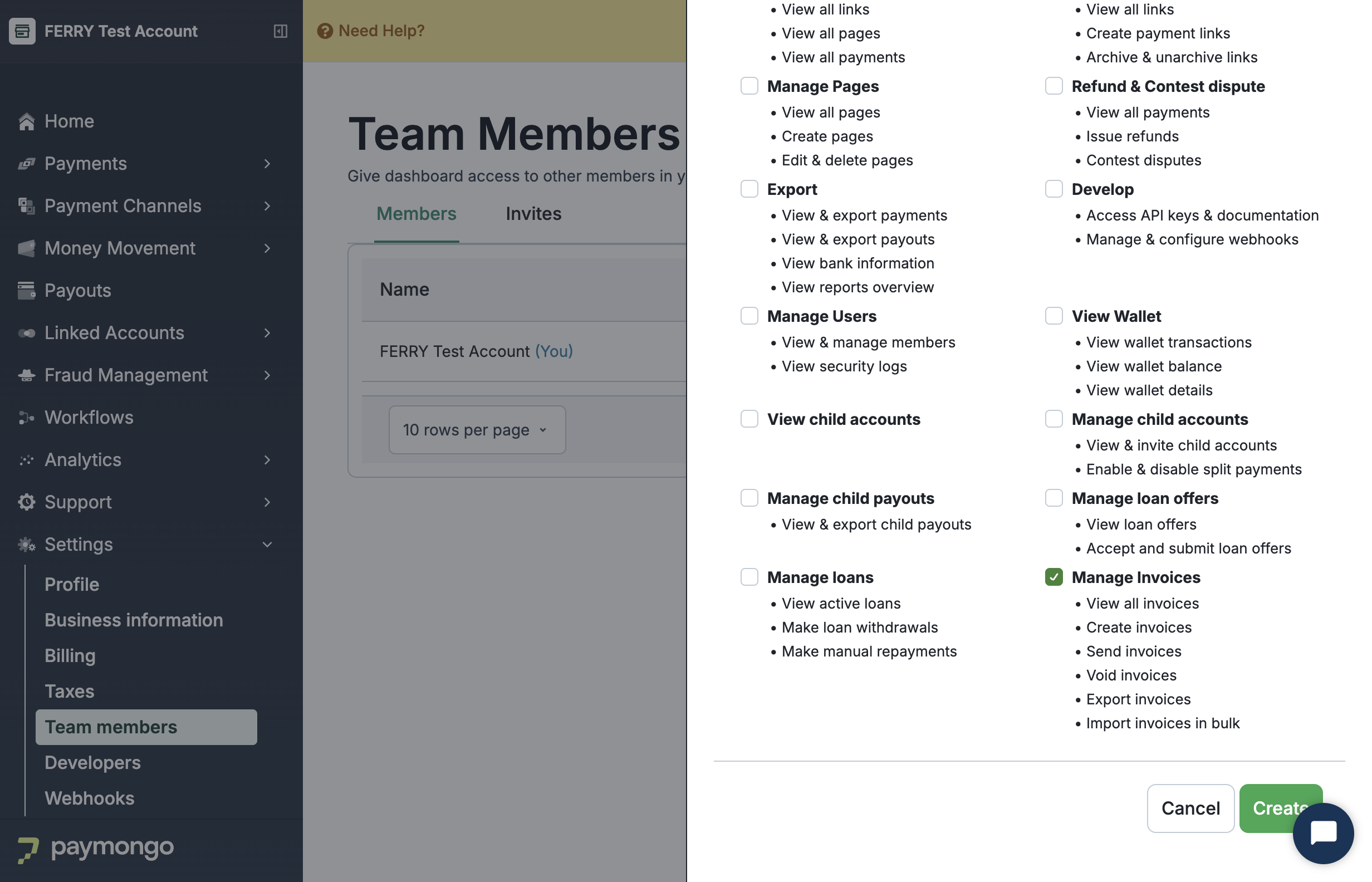
The same permission covers the scheduled parts of invoicing: a member who can create and send invoices can also set up repeating invoices, pause, resume or cancel a schedule, and schedule a single invoice to send on a later date.
Members without it do not see Invoices in their sidebar at all. Members with read-only access can open invoices and download PDFs, but cannot create, send, or void them. The account owner always has full access.
Updated 16 days ago