
Linked accounts
Link PayMongo accounts in a parent / child relationship to invite, onboard, and operate on other accounts through the Accounts API.
Who this section is for
Business owners, product leads, and engineers at businesses that connect to and manage other accounts on PayMongo — a marketplace with sellers, a platform with sub-merchants, or a group managing multiple entities or branches. This page explains what linked accounts are and walks through linking accounts by invitation.
What are linked accounts
Linked accounts connect two PayMongo accounts in a relationship where one side, the parent, can onboard and operate on behalf of the other, the child. It is the foundational model behind every PayMongo product that works across more than one account.
Parent and child are roles in a relationship, not account types. Both sides are full PayMongo accounts: the child keeps its own login, Dashboard, and independent operation, while the relationship gives the parent a defined set of actions it can perform on the child's behalf.
A relationship enables the parent to:
| The parent can | Where it's documented |
|---|---|
| Onboard the child — create, verify, and activate it | Onboarding-as-a-Service |
| Transact on the child's behalf | Linked transactions |
| View the child's transactions | Linked transactions |
A relationship grants the parent only what its policy contract permits. Broader access is explicit, never implied.
How relationships connect
Every relationship is direct and one-directional: it links exactly two accounts, with one side as the parent and the other as the child. Whatever a relationship allows applies only between those two accounts, in that one direction.
Three consequences are worth spelling out:
- A relationship does not reach past its two accounts. Suppose your platform is the parent of a merchant, and that merchant is itself the parent of its own branch accounts. Your platform holds no relationship with those branches — there is no "grandchild." To operate on a branch, your platform must link with it directly.
flowchart LR
  P[Your platform] -->|parent of| M[Merchant]
  M -->|parent of| B[Merchant's branch]
  P -.->|no relationship| B
-
Two accounts can hold a relationship in each direction. Your account can be the parent of a partner's account while the partner's account is, separately, the parent of yours. These are two independent relationships, each with its own scope — the role you play depends on which relationship the action runs under.
-
An account can hold many relationships at once (Coming soon). With multi-association, the same account can be the parent of many accounts and, at the same time, the child of others — your platform manages its merchants while itself sitting under a group account. Each relationship stands on its own; parent and child describe the account's role in one relationship, never the account itself.
The relationship graph once multi-association ships (Coming soon):
flowchart TD
  G[Group account] -->|parent of| P[Your platform]
  P -->|parent of| M1[Merchant A]
  P -->|parent of| M2[Merchant B]
  X[Partner platform] -->|parent of| M2
How relationships are established
There are two ways to establish a relationship:
- Invite — the parent invites an account in, and the recipient creates or owns it. This page covers the Invite flow.
- Create an account — the parent creates the account directly via API. Documented under Onboarding-as-a-Service.
Whichever way the relationship starts, the access the parent ends up with depends on one question: is the parent enabled for full access?
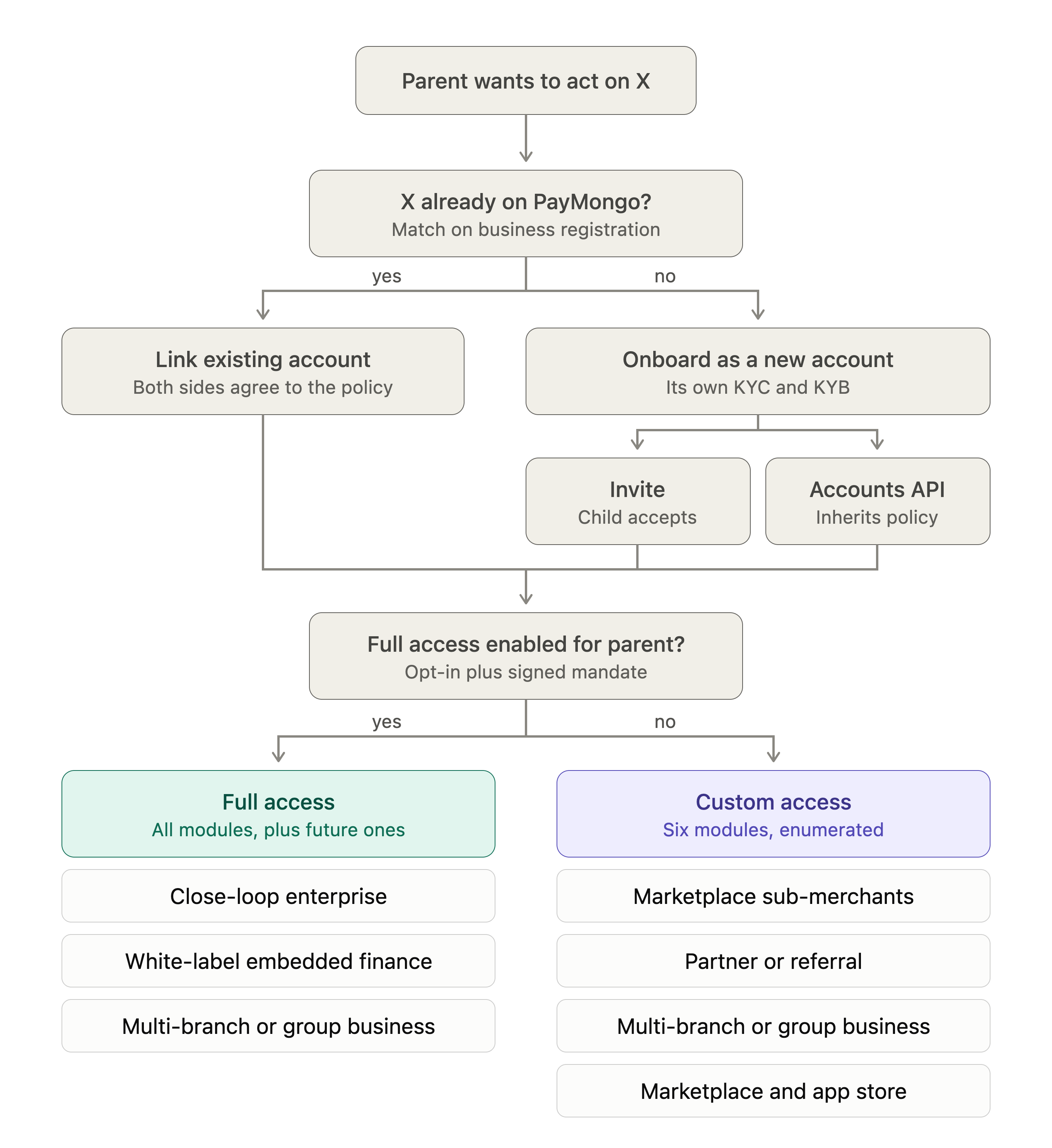
From wanting to act on an account to the access tier that applies
You choose the access each time you invite or create a child. Custom access is open to everyone: you pick a scope for each module. Full access is an extra option that grants everything at once, and only platforms that have opted in and signed a mandate with PayMongo can pick it. To opt in, contact PayMongo or your account manager; there is no self-serve toggle. See Policy contracts for what each permission means.
Coming soon — Q3 2026The linking model is expanding to multi-association — an account holding many relationships at once, acting as parent in some and child in others — with each relationship governed by an explicit policy contract both sides agree to. See Policy contracts for the full model.
Invite a new account by email
You can link a brand-new business or individual to your account by inviting them with their email address. This is for people who don't have a PayMongo account yet. Once they sign up and finish onboarding, they become your linked child account, and you can transact on their behalf.
There are two ways to do this, and this page covers both:
| Method | Best for | What it takes |
|---|---|---|
| Merchant Dashboard | Linking one or a few accounts by hand | Point-and-click, no code |
| API | Platforms that link accounts programmatically or at scale | A few API calls with your secret key |
Both methods do the same thing behind the scenes, and they end the same way: your invitee receives a signup link, creates their PayMongo account, and completes standard onboarding.
Two things to know before you begin
- PayMongo does not send the invitation email for you. You generate a signup link and share it with your invitee through your own channel, such as your email or chat.
- The email must match. Your invitee has to sign up using the exact email address you invited. Signup is rejected if the email is different.
What you'll need
-
Access to the parent account, which is the one doing the inviting.
-
Linked accounts enabled on your account. They are enabled once your account is activated and you have accepted the latest Terms of Use. No support request is needed.
To invite from the Dashboard, use the Account Owner, or any user whose role has the View & invite child accounts permission. That opens Settings → Invitations.
-
Your invitee's email address.
-
For the API, your account's secret API key.
Method 1: Merchant Dashboard
Step 1. Open Invitations
Go to Settings and open Invitations.
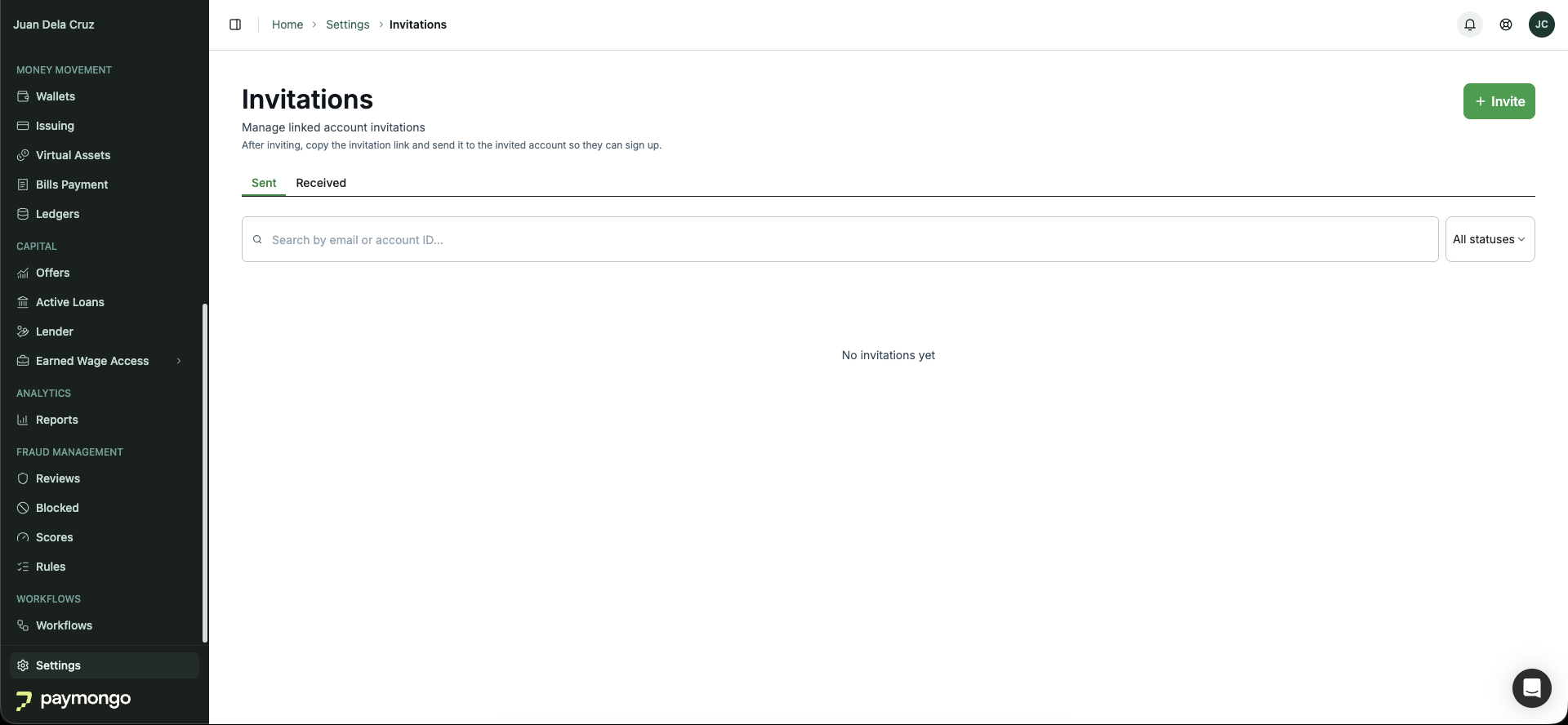
Settings → Invitations
Step 2. Send the invitation
- Click Invite.
- Type the invitee's email address and press Enter to add it. You can add more than one address to invite several accounts at once.
- Choose the account Type:
- Merchant: a business that will complete full business verification.
- Non-business Individual: an individual who completes identity verification only.
- Under What you can do on child accounts, choose Custom access or Full access. Custom access lets you set each module yourself. Full access is available only to platforms that have opted in to full-access delegation; to opt in, contact PayMongo or your account manager.
- Under Custom access, pick None, Linked, or All for each module. See Selecting permissions in the Merchant Dashboard for what each option means.
- Click Review invitation, check the summary, then click Send invitation.
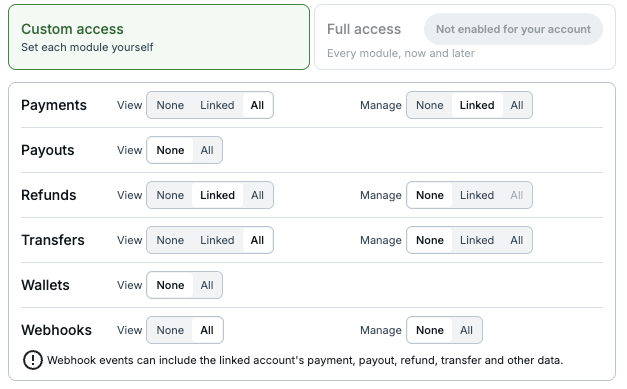
Choosing permissions for each module
Your invitation appears in the Sent list with the status Pending and an invitation ID that starts with lr_.
Step 3. Copy and share the signup link
- On the new invitation row, click Copy signup link.
- Send that link to your invitee. It looks like this:
https://dashboard.paymongo.com/[email protected]&invitation_code=lr_xxxxxxxxxxxxxxxxxxxxxxxx
Share the copied link exactly as it isThe link already contains your invitee's email and invitation code. Don't retype or edit it. Just copy and share it directly so the values aren't changed.
Step 4. Your invitee signs up and onboards
When the invitee opens the link while signed out, they land on PayMongo's Create your account page with their email and invitation code already filled in. They then:
- Set a password and accept the Terms, leaving the pre-filled email unchanged.
- Verify their email with the one-time code.
- Complete standard PayMongo onboarding. This is identity verification, followed by business information (for merchants) or personal information (for individuals).
Step 5. Confirm the link
Back on the Invitations page, the invitation status changes from Pending to Accepted and shows the linked child account. The two accounts are now linked. Open the invitation to see the permissions the relationship grants.
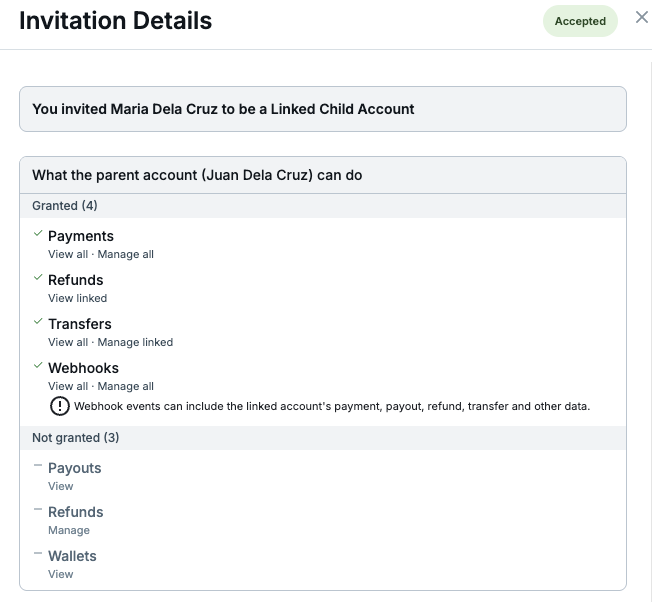
Permissions granted on the new relationship
Method 2: API
Use the API to create and track invitations programmatically. This is ideal for platforms that onboard many child accounts.
What the API does, and what it doesn't doThe API creates and tracks the invitation. It does not onboard your invitee for you. A new user still opens the signup link in a browser and completes signup and identity verification themselves. In other words, the API handles the invitation, and your invitee completes the rest. That rest is the same standard onboarding as any PayMongo account.
Authentication. Authenticate with your secret API key using HTTP Basic auth: your secret key is the username, and the password is left empty. Public keys cannot create or manage links.
Base URL: https://api.paymongo.com
Step 1. Create the invitation
Send a POST to /v2/linking-requests/invites with one or more invitees. Set account_type to merchant for a business or consumer for a non-business individual.
curl -X POST https://api.paymongo.com/v2/linking-requests/invites \
  -u sk_live_your_secret_key: \
  -H "Content-Type: application/json" \
  -d '{
    "invites": [
      { "email": "[email protected]", "account_type": "merchant" }
    ]
  }'
The response returns an invitation ID (starting with lr_) for each invitee, each with a status of pending:
{
  "success_count": 1,
  "failed_count": 0,
  "invites": [
    {
      "email": "[email protected]",
      "account_type": "merchant",
      "invitation_id": "lr_xxxxxxxxxxxxxxxxxxxxxxxx",
      "status": "pending"
    }
  ]
}
You can include several invitees in one request. Each one is reported independently, so some can succeed while others fail.
Step 2. Build the signup link
Construct the signup link from the invitee's email and the invitation_id you got back:
https://dashboard.paymongo.com/signup?email={EMAIL}&invitation_code={invitation_id}
Encode the emailEncode the email before you put it in the link. In particular, a
+must become%2B. For example,[email protected]becomesjane%[email protected]. Otherwise the invitee's prefilled email won't match the invitation, and signup will fail.
Step 3. Share the link and let your invitee onboard
Send the link to your invitee. They open it in a browser, create their PayMongo account with the prefilled email, and complete standard onboarding. This is identity verification, followed by business or personal information.
Step 4. Track the invitation
Poll the invitation to see when it's accepted. To fetch one by ID:
curl https://api.paymongo.com/v2/linking-requests/lr_xxxxxxxxxxxxxxxxxxxxxxxx \
-u sk_live_your_secret_key:{
"invitation_id": "lr_xxxxxxxxxxxxxxxxxxxxxxxx",
"email": "[email protected]",
"account_type": "merchant",
"status": "accepted",
"child_account_id": "org_xxxxxxxxxxxxxxxxxxxxxxxx"
}When status becomes accepted, child_account_id is filled in and the accounts are linked. You can also list invitations and filter by status. See the Reference section below.
After the invitation is accepted
Once your invitee finishes onboarding and their account is activated:
- The invitation status becomes Accepted, and the invitation now carries the new child account ID.
- The link between your account and the child account is live, and you can transact on the child's behalf according to your Linked Accounts setup.
- The child can also sign in and operate their own account independently.
Managing invitations
You can manage invitations from either the Dashboard or the API.
| Action | Merchant Dashboard | API |
|---|---|---|
| See invitation status | Open the row in Invitations → Sent | GET /v2/linking-requests or GET /v2/linking-requests/{id} |
| Cancel a pending invitation | Open the row and click Cancel | POST /v2/linking-requests/{id}/cancel |
| Re-share the signup link | Click Copy signup link again | Rebuild the link from the email and invitation_id |
A couple of things to keep in mind:
- Invitations don't expire. A pending invitation stays valid until it's accepted, declined, or cancelled.
- One active invitation per email. You can't send a second pending invitation to an email that already has one. Cancel the first if you need to resend.
Reference
Account types
| Type | API value | Onboarding the invitee completes |
|---|---|---|
| Merchant | merchant | Identity verification and business information |
| Non-business Individual | consumer | Identity verification only |
Invitation statuses
| Status | Meaning |
|---|---|
pending | Invitation sent. The invitee hasn't signed up yet. |
accepted | The invitee signed up, and the accounts are linked. |
declined | The invitee declined the invitation. |
cancelled | The parent cancelled the invitation. |
Endpoints
| Purpose | Method and path |
|---|---|
| Create invitations | POST /v2/linking-requests/invites |
| List invitations | GET /v2/linking-requests |
| Get one invitation | GET /v2/linking-requests/{id} |
| Cancel an invitation | POST /v2/linking-requests/{id}/cancel |
Updated 11 days ago