
Account capabilities
Understand the capabilities available on your PayMongo account (payment methods, wallet, subscriptions, capital, and linked accounts) and how to activate each.
What are the capabilities of your account?
Capabilities are the features and products your PayMongo account can access. They expand as you complete verification steps and request activation for specific products.
Your account's capabilities depend on your current verification and activation status. This page covers each capability group — what it is, who it's for, and how to activate it.
List of product groups
- Payment methods — Accept payments through cards, e-wallets, direct debit, and more
- Wallet — Send funds to banks and e-wallets via InstaPay or PESONet
- Subscriptions — Enable recurring payments on supported methods
- Capital — Access working capital backed by your daily payment flows
- Linked accounts — Manage child accounts and split payments
Tracking your capabilities and requests
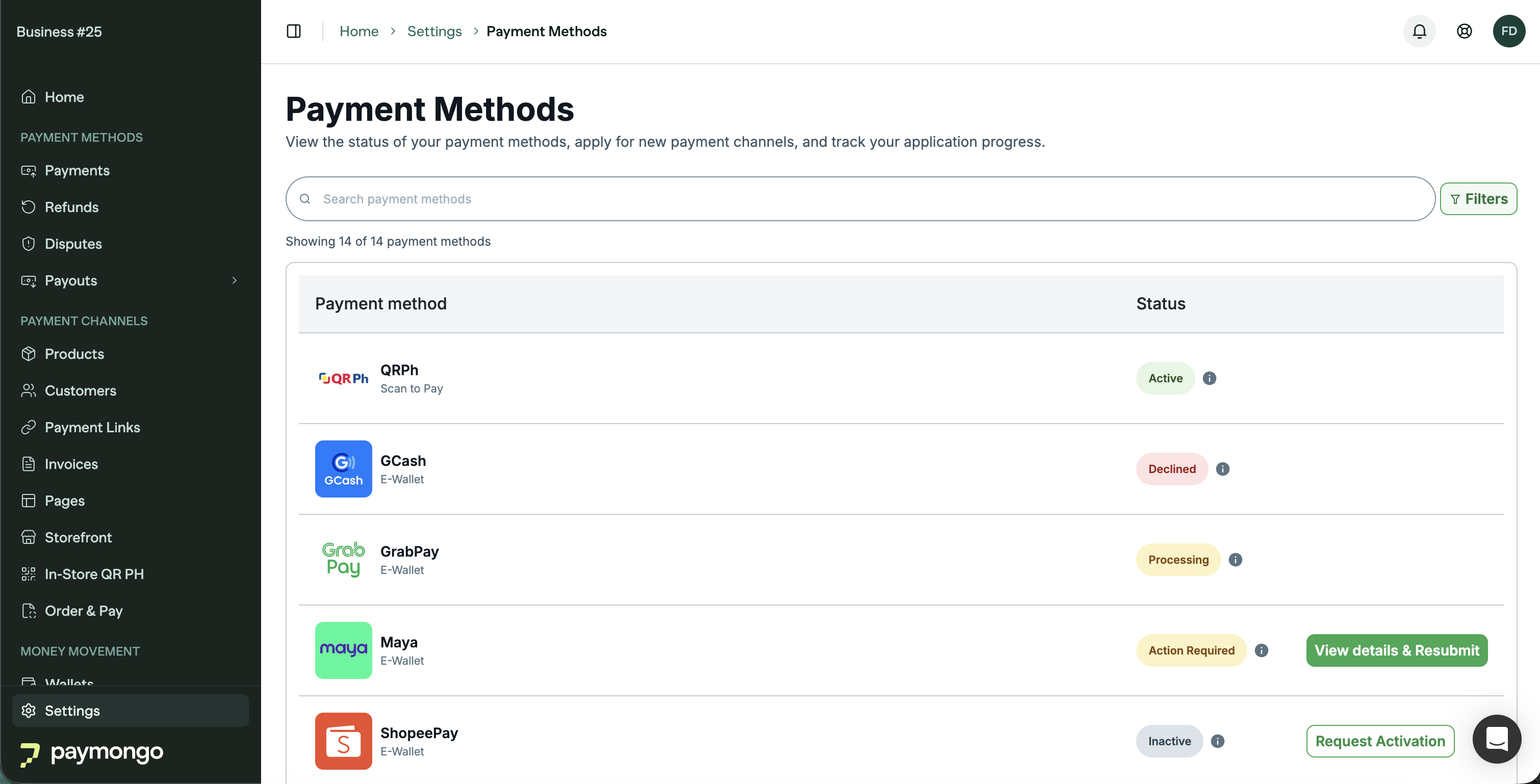
The Settings > Payment Methods page in the Dashboard shows a status badge next to each payment method, indicating where your request stands.
| Status | What it means |
|---|---|
| Active | The capability is enabled and ready to use. |
| Inactive | Not yet requested — you can request activation or contact support. |
| Submitted | Your request is in queue and will be reviewed soon. |
| Under Review | Your request is being reviewed by the onboarding team. Nothing to do — do not submit a second request. |
| Action Required | We need something specific from you. Click View details & Resubmit on the row to see exactly which fields or documents to fix, and resubmit. |
| Processing | Your request has been approved and is being set up — timelines may vary depending on the payment partner. |
| Completed | Setup is finished. |
| Declined | Your request was not approved — contact [email protected] for next steps. |
| Cancelled | The request was withdrawn before review finished. |
The Payment Methods page is only available in live mode. Switch to live mode to view your payment method statuses.
Processing times listed per capability below are estimates and may vary based on document review and payment partner approval.
For wallet enablement status, check the banner on the Money Movement > Wallets page.
Payment methods
What and who is this for?
This is for any merchant who wants to accept more payment options. Payment methods determine how your customers can pay you — cards, e-wallets, direct debit, QR, and buy-now-pay-later — beyond the default QR Ph.
Payment methods are managed from Settings > Payment Methods in the Dashboard (live mode only).
How to activate?
Requesting a payment method is a single confirmation. Your business information
and documents already live on your account, so there is no form to fill in again
and no documents to re-upload.
Before the button appears, your account needs:
| Prerequisite | Where to complete it |
|---|---|
| An Enabled wallet | See wallet enablement. Until then every method shows "Enable your wallet" |
| Business information | Settings > Business Information |
| A registered business type | Individual accounts can request Maya, GrabPay and ShopeePay. GCash and Visa & Mastercard need a registered business type — see Upgrading your business type |
| Identity verification | New requests are paused while your identity verification is under manual review |
To request a method:
- Go to Settings > Payment Methods in the Dashboard (live mode only). Only
the account owner can request activation - Find the payment method you want and click Request Activation
- Confirm. If your account has no website on file and the method needs one, you
are asked for it there — nothing else is re-collected - Track the status on the same page
Requesting activation does not enable the method right away — it goes to our
onboarding team for review.
For methods that require manual request (see table below), email [email protected].
Upgrading your business type
Some payment methods are only available to registered businesses. Upgrading is
its own request, separate from any payment method request — you submit it
once and it unlocks every method your new business type is eligible for.
- Go to Settings > Business Information (or click Upgrade now on the
banner at the top of Settings > Payment Methods) - Pick your business type
- Upload the documents that type requires
- Review and submit
While the upgrade is being reviewed, the Payment Methods page shows its status in
a banner, and methods that need the upgrade say so on their row. You do not need
to request those methods again after the upgrade is approved — request them once
your new business type is in place.
Your business type can only be set onceMoving from Individual to a registered type is an upgrade and is always
available. Changing an already-registered type (for example Sole Proprietor →
Corporation) has to be done by our team — contact [email protected].
If a request needs more information
A request in Action Required is waiting on you, not on us. Click
View details & Resubmit on that row to open the request. It shows our
message and a short form containing only the fields and documents we asked for —
you are not asked to re-enter your whole business profile. Submit it and the
request goes back to Under Review.
The same applies to a business-type upgrade in Action Required: open it from
Settings > Business Information.
Requirements
Payment method activation requires the business documents for your entity type to
already be on your account — the request itself does not collect them. See
Account setup — Verification requirements by entity type
for the full list, and Business types for what
each type unlocks.
Payment Method Eligibility
Allowed Payment methods is dependent on the Type of Business
| Payment Methods | Individual (No website) | Individual (With Website) | Sole Proprietor | Partnership | Corporation | One Person Corporation (OPC) |
|---|---|---|---|---|---|---|
| QRPH | ✅ | ✅ | ✅ | ✅ | ✅ | ✅ |
| Direct Online Banking (DOB) | ❌ | ✅ | ✅ | ✅ | ✅ | ✅ |
| E-Wallets (Maya, Grab, ShopeePay) | ❌ | ✅ | ✅ | ✅ | ✅ | ✅ |
| E-Wallets (GCash) | ❌ | ❌ | ✅ | ✅ | ✅ | ✅ |
| Debit/Credit Cards, GooglePay | ❌ | ❌ | ✅ | ✅ | ✅ | ✅ |
Configuration for E-wallets and Cards are subject to approval of our providers.
List of capabilities with estimated processing time
Enabled by default:
| Payment method | Type | Notes |
|---|---|---|
| QR Ph | Scan to Pay | Activated automatically on account activation — no action needed |
Self-service activation (via Dashboard):
| Payment method | Type | Estimated processing time |
|---|---|---|
| GCash | E-Wallet | 3–7 business days |
| GrabPay | E-Wallet | 3–7 business days |
| Maya | E-Wallet | 3–7 business days |
| ShopeePay | E-Wallet | 3–7 business days |
| Visa & Mastercard | Card | 5–10 business days |
GCash and Visa & Mastercard require a registered business type. On an Individual
account those rows say so and link to the upgrade instead of showing
Request Activation.
Manually requested (contact [email protected]):
| Payment method | Type | Estimated processing time |
|---|---|---|
| BillEase | Pay Later | 2–3 business days |
| BDO (via Brankas) | Direct Debit | 1–3 business days |
| BPI | Direct Debit | 1–3 business days |
| Google Pay | Digital Wallet | 5–10 business days (1–3 if cards already active) |
| Landbank (via Brankas) | Direct Debit | 1–3 business days |
| Metrobank (via Brankas) | Direct Debit | 1–3 business days |
| RCBC (via Brankas) | Direct Debit | 1–3 business days |
| UBP | Direct Debit | 1–3 business days |
Checking payment method capabilities via API
You can check which payment methods are currently active on your account using the API:
GET /v1/merchants/capabilities/payment_methodsThis returns an array of payment method identifiers that are currently configured (for example, ["card", "gcash", "qrph"]). Methods that are not yet configured will not appear in the response.
Authenticate with your secret API key (sk_live_* or sk_test_*).
Wallet
What and who is this for?
Your wallet determines how you can move money out of PayMongo:
- Closed-loop — Send funds to other PayMongo accounts only
- Enabled — Send funds to any bank account or e-wallet via InstaPay or PESONet
This is for accounts that accept payments settled to the wallet, and for those who need to pay out to external bank accounts or e-wallets.
How to activate?
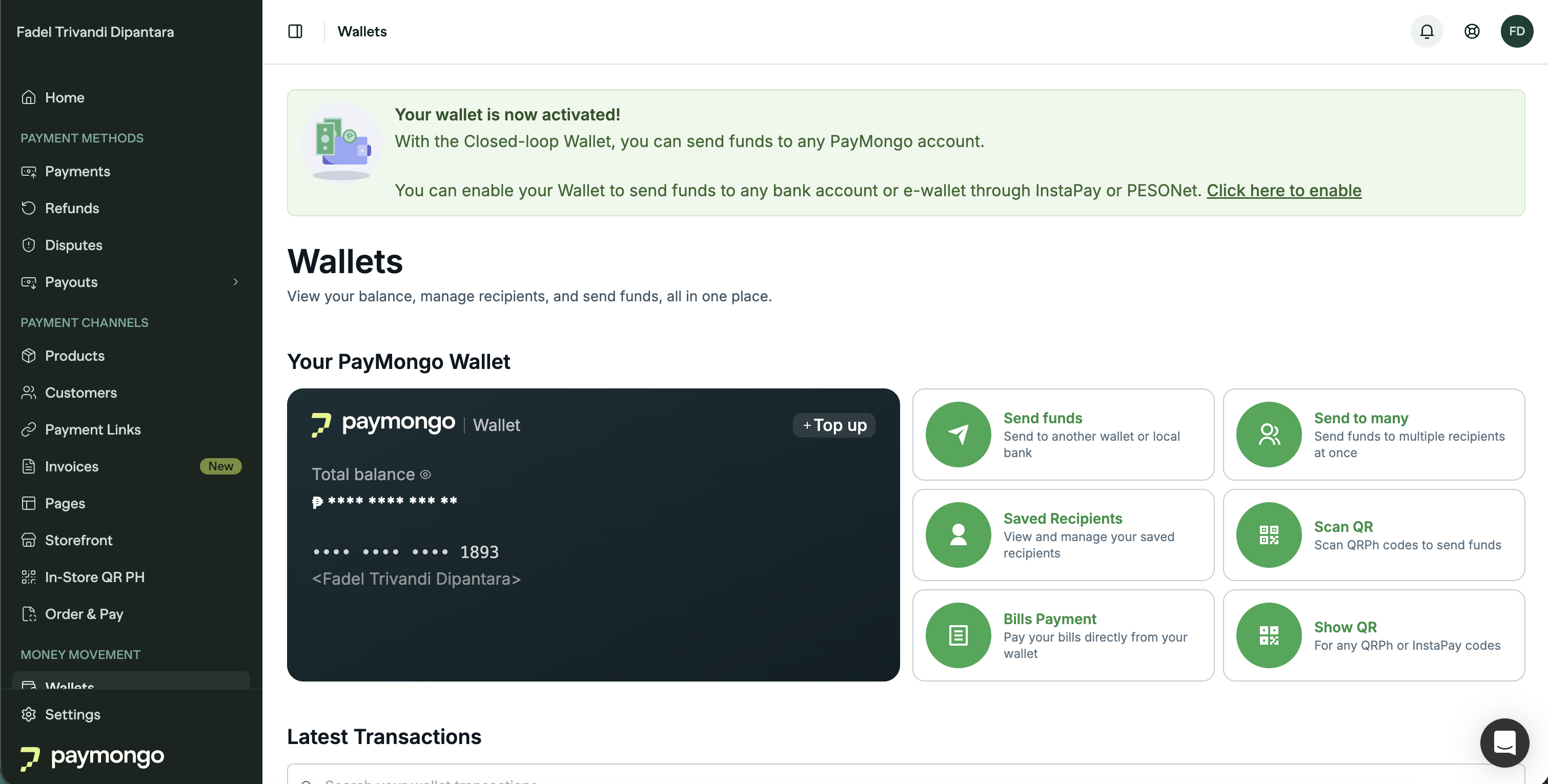
- From the Dashboard sidebar, go to Money Movement > Wallets
- On the wallet banner, click Click here to enable
- Complete the business information form and submit
What happens next depends on whether you have completed identity verification (liveness check):
- If liveness was already passed during account setup, your wallet enables immediately upon approval.
- If not yet passed, the request goes under review (up to 14 business days).
Requirements
Wallet enablement requires:
-
Business information — Complete the business information form (business name, description, industry, address, TIN, and related details). See Account setup — Business profile & business verification.
-
Identity verification (liveness check) — The account owner must complete a biometric and ID verification step. If you have not completed liveness during initial account setup, you can still submit the wallet enablement form, but the request will go under review instead of activating immediately. See Account setup — Identity verification for details.
List of capabilities with estimated processing time
| Capability | Processing time |
|---|---|
| Wallet enablement (Closed-loop → Enabled) | Immediate if liveness passed; up to 14 business days otherwise |
Wallet enablement is self-service from the Dashboard — no need to contact support.
Subscriptions
What and who is this for?
Recurring payments (subscriptions) which allow you to charge customers on a schedule. Subscriptions are supported on Cards, and Maya.
This is for merchants implementing recurring billing — SaaS, memberships, installments, and similar use cases.
How to activate?
Subscriptions require separate activation from payment method activation — enabling a payment method does not automatically enable subscriptions for it. The payment method is typically activated before subscriptions are enabled for it.
Contact [email protected] to enable subscriptions on your payment methods.
Requirements
The underlying payment method must go through its own activation first. See Account setup — Verification requirements by entity type for KYB requirements related to the payment method.
List of capabilities
| Capability | How to request |
|---|---|
| Card subscriptions | Contact [email protected] |
| Maya subscriptions | Contact [email protected] |
All subscription activations are manually requested — no self-service flow is available.
Capital
What and who is this for?
Capital gives you access to working capital backed by your daily eligible sales, with repayments that adjust to your payment flows.
This is for merchants who need funding for business operations. Capital appears in your Dashboard when it has been made available for your account.
How to activate?
Capital is made available by PayMongo on a per-account basis. Contact [email protected] to inquire about Capital availability for your account.
Requirements
No standard KYB requirements specific to Capital beyond having an active PayMongo account. PayMongo determines eligibility internally.
Linked accounts
What and who is this for?
Linked accounts let you invite and manage child accounts. Each relationship has an Authorization toggle on Settings → Child Accounts. When it is off, the child is blocked both as a split payment recipient and as an Account-ID target, so the toggle gates linked transactions as well as splits.
This is for marketplaces, franchise networks, and Onboarding-as-a-Service use cases. These features appear in the Dashboard sidebar under Linked accounts (formerly Platforms) when enabled for your account.
How to activate?
Linked accounts will be enabled once your account is activated and you have accepted the latest Terms of Use. No support request is needed. See How to enable linked accounts.
See Linked accounts for the parent-child account model.
Updated 10 days ago