
Repeating Invoices
Bill the same customer on a schedule, without touching it each cycle.
Rolling out
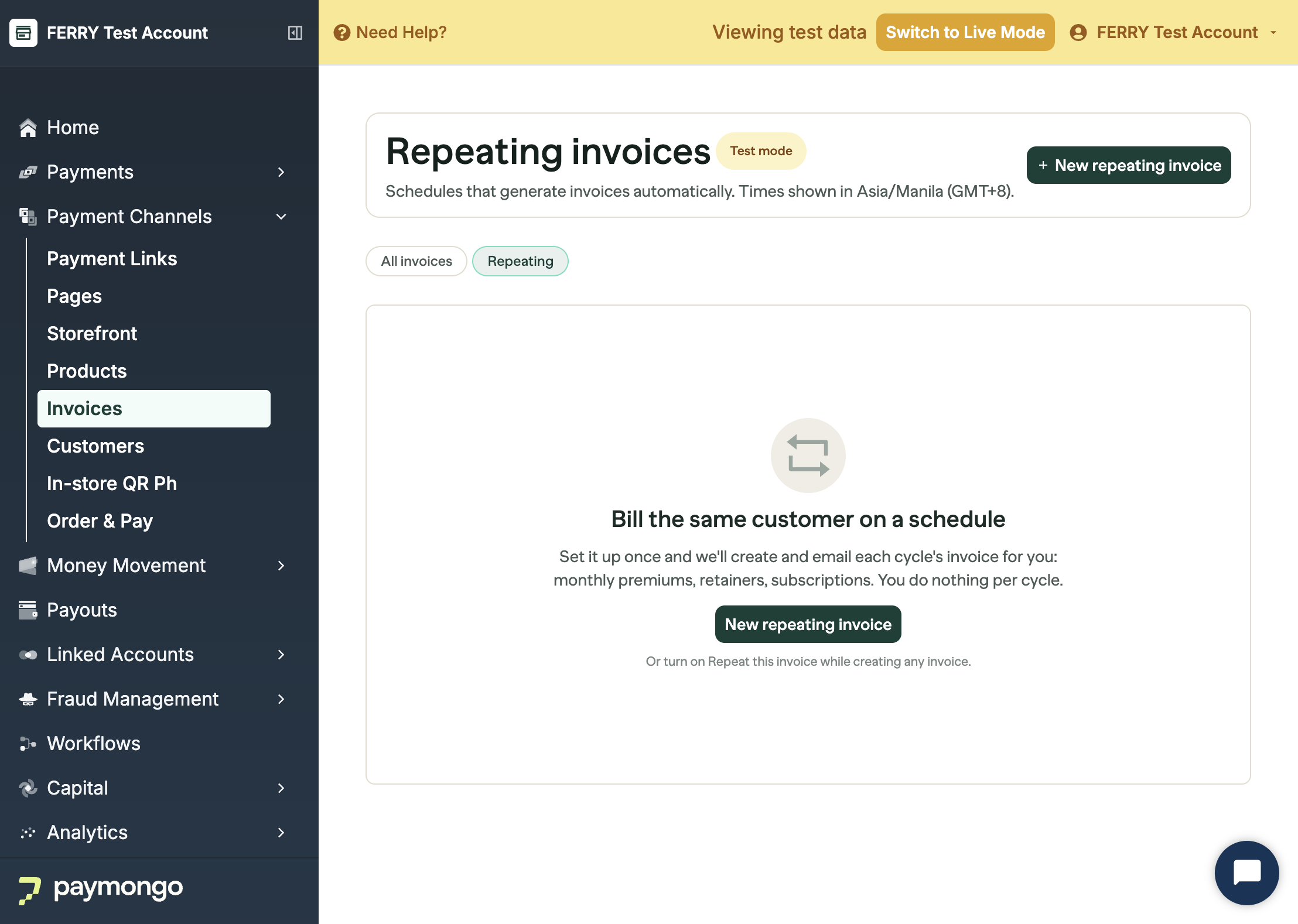
Repeating invoices are being enabled per organization. If you do not see the Repeating tab on your Invoices page yet, your organization does not have them enabled.
Bill the same customer on a schedule. Set it up once and PayMongo creates and emails each cycle's invoice for you.
Repeating invoices suit anything billed on a fixed rhythm: monthly retainers, subscriptions, rent, insurance premiums. You do nothing per cycle.
Create a repeating invoice
There are two ways in:
- Go to Payment Channels → Invoices, open the Repeating tab, and click New repeating invoice.
- Or turn on Repeat this invoice while creating any invoice.
Fill in the customer and the single line item you are billing, then set the schedule:
| Field | What it does |
|---|---|
| How often | Repeat every 1 to 10 Days, Weeks, Months, or Years. |
| Starts | The date the first invoice goes out. |
| Ends | After a set number of cycles, or Keep going until I cancel. |
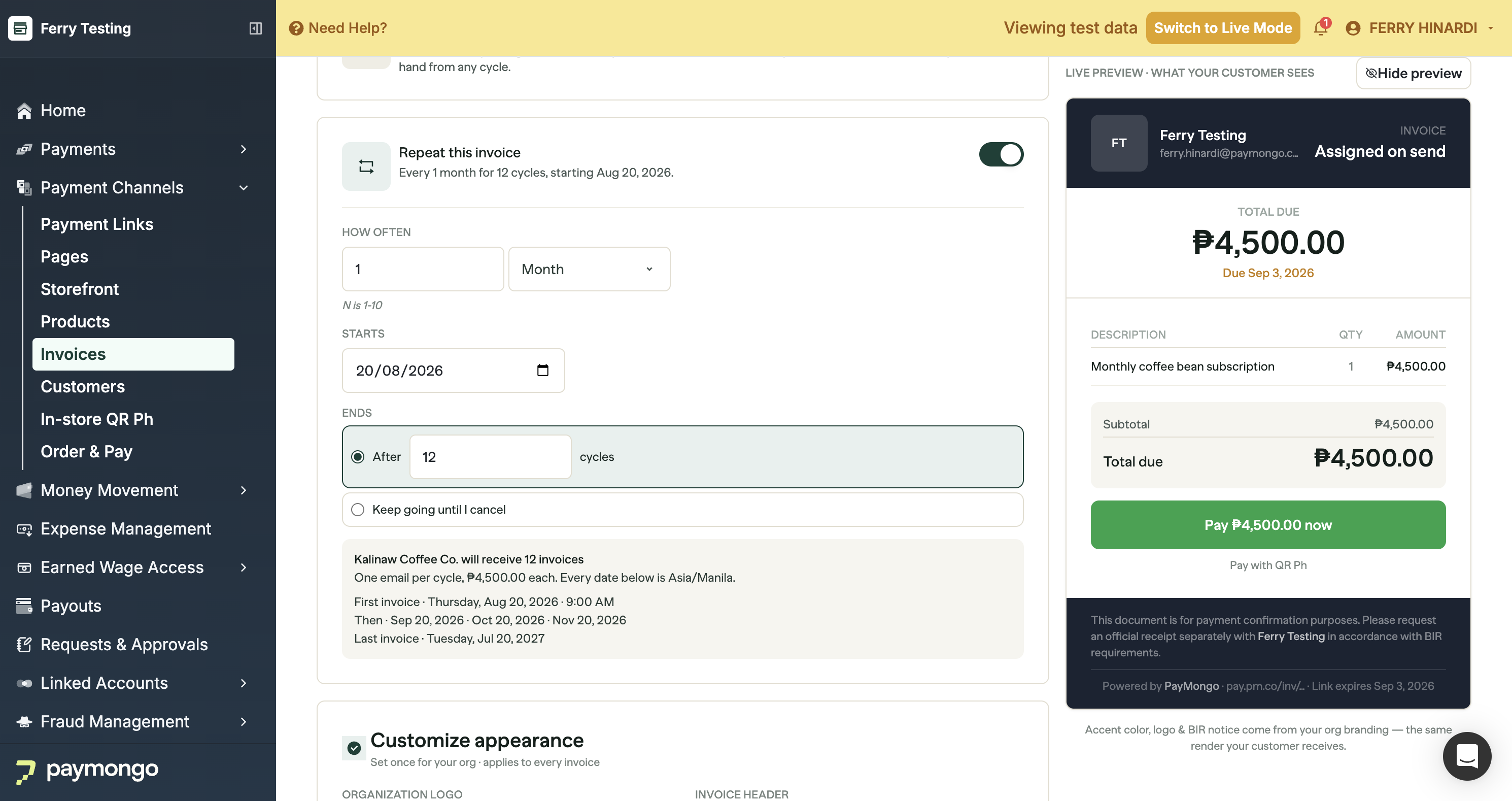
Before you confirm, the summary tells you exactly what your customer will get: how many invoices, the amount of each, the first send date, the dates that follow, and the last one when the schedule is bounded.
A repeating invoice starts the moment you create it, so there is no draft to save.
What your customer receives
One email per cycle, each with its own invoice and its own payment link. Each cycle is a normal invoice: it can be paid, voided, and downloaded as a PDF like any other.
Cycle invoices go out at 9:00 AM, and every date on the schedule is Asia/Manila (GMT+8).
Track your schedules
The Repeating tab lists every schedule with its amount, cadence, next run, and progress (3 of 12, or Ongoing · 3 sent when it runs until you cancel).
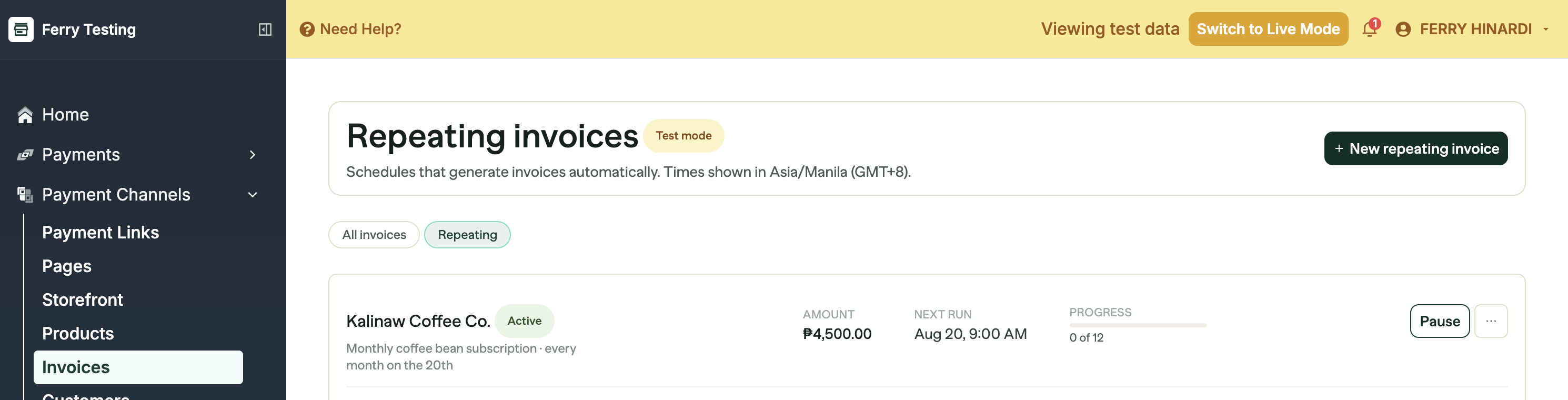
A schedule is in one of these states:
| Status | What it means |
|---|---|
| Pending | Still finishing setup. |
| Active | Running, and will generate the next invoice on the date shown. |
| Paused | Stopped for now. No invoices are generated until you resume. |
| Completed | Every cycle has been generated. |
| Cancelled | Stopped for good. No further invoices will be sent. |
Click View invoices on any schedule to see the invoices it has generated, listed by cycle with the date each was sent.
Pause, resume, or cancel
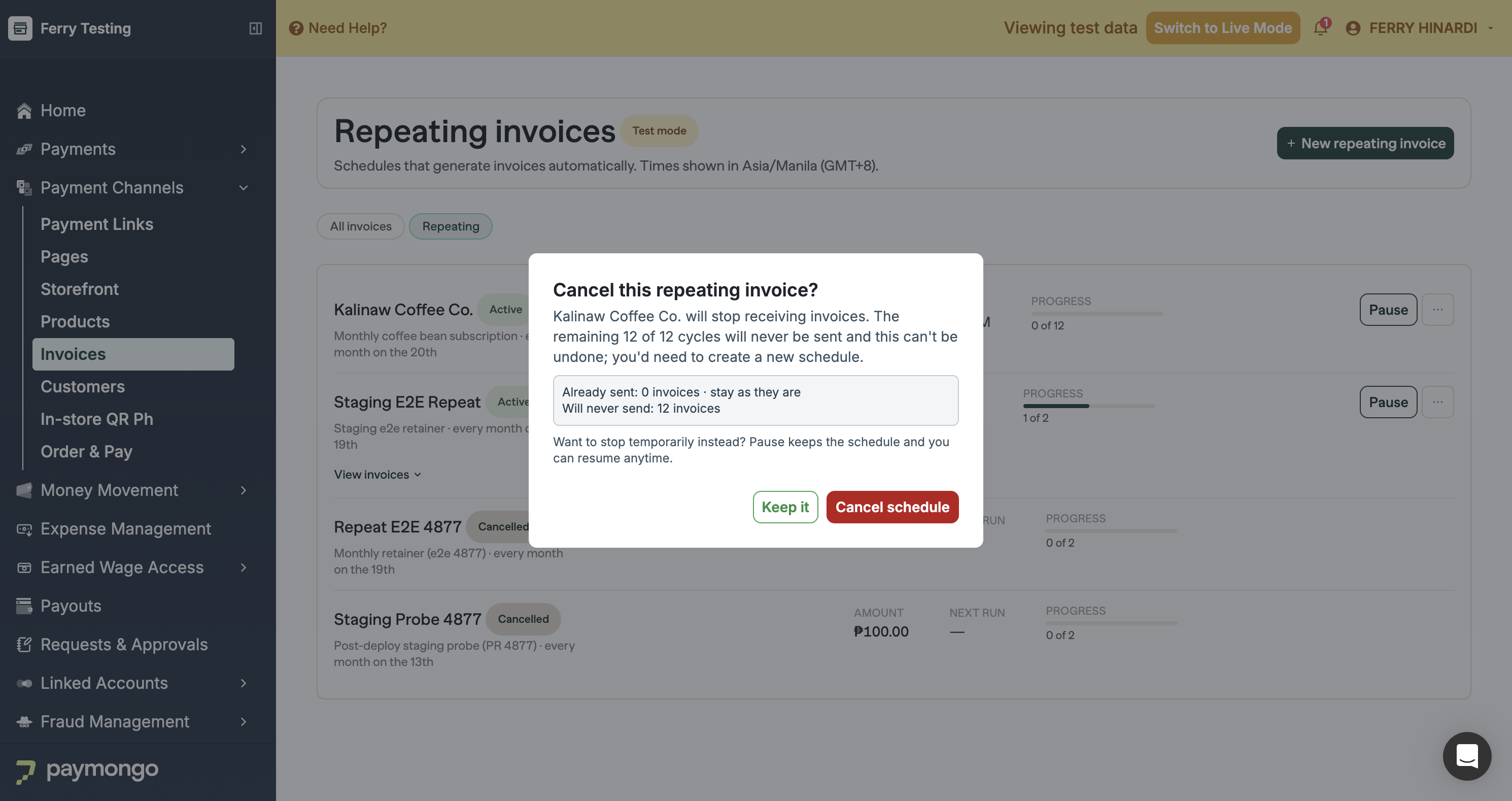
Use Pause to stop temporarily. The schedule keeps its place and you can Resume any time.
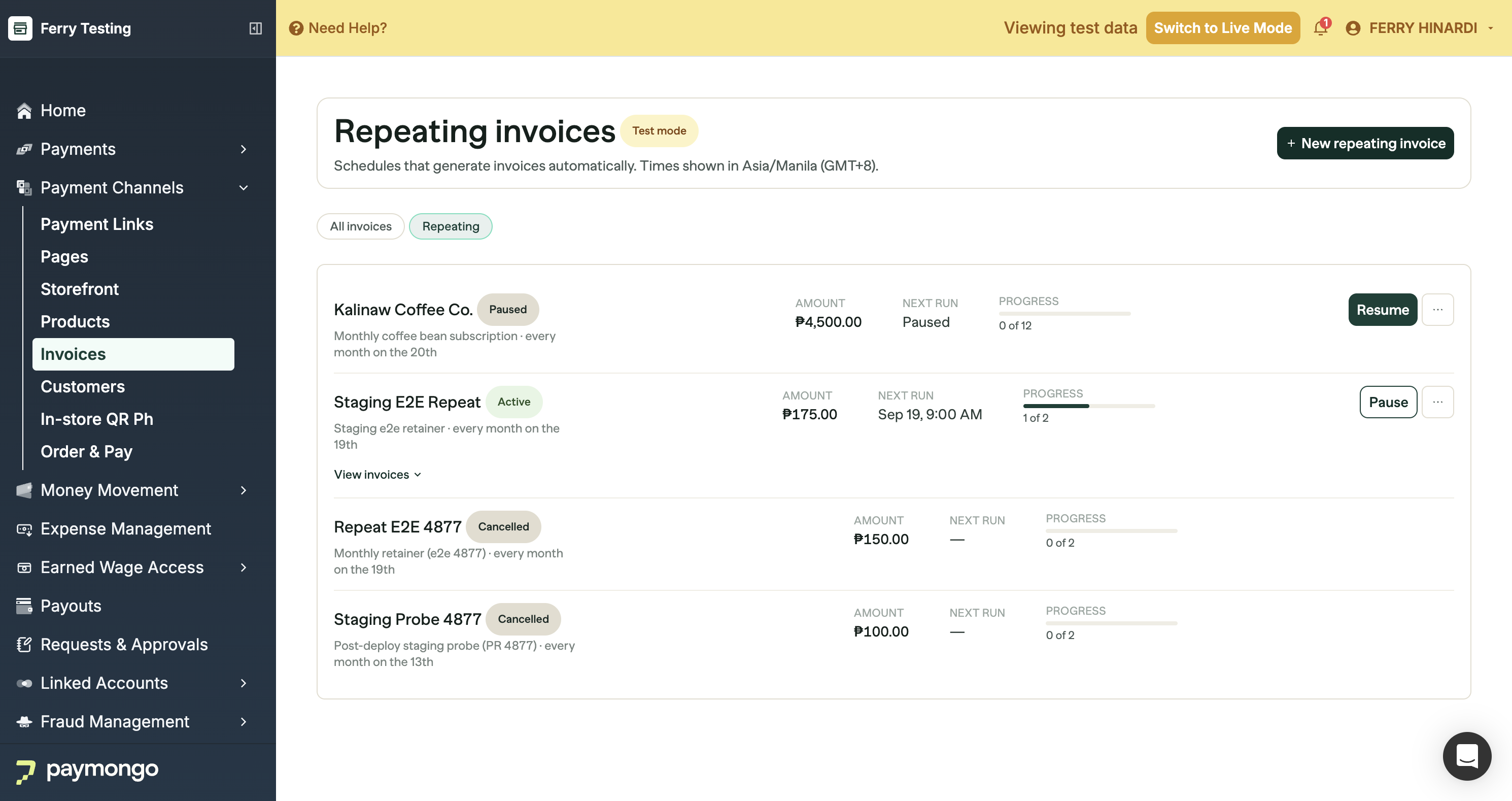
Use Cancel schedule to stop for good. Invoices already sent stay exactly as they are, and any remaining cycles will never be sent. Cancelling cannot be undone, so pause instead if you only need to stop for a while.
If a cycle does not send
Occasionally a cycle's invoice is generated but the payment link cannot be created, so nothing is emailed. When that happens the Repeating tab shows a banner naming the cycle and customer, and the invoice is listed as unpaid. Your customer never saw it.
The usual cause is a customer email that no longer works. Use Fix email on the banner to correct it, which updates the customer record for every later cycle. Future cycles are unaffected and stay scheduled.
Reminders and repeating invoices
Automatic reminders are not used for repeating invoices, since each cycle emails its own invoice. You can still send a reminder by hand from any individual cycle.
Who can set one up
Setting up a repeating invoice uses the same Manage Invoices permission as creating and sending invoices, so a member who can send an invoice can also create a schedule and pause, resume, or cancel it. See Manage sent invoices for how to grant it.
Limits
- One line item per repeating invoice
- Repeat every 1 to 10 days, weeks, months, or years
- Schedules run on Asia/Manila (GMT+8) and send at 9:00 AM
- For monthly schedules starting on the 29th, 30th, or 31st, PayMongo sends on the 28th of each month instead, so every cycle lands on a date that exists
- Discounts are not carried onto a repeating invoice
- Repeating invoices cannot be created from a CSV import
Updated about 2 months ago