
IP Whitelisting
IP whitelisting lets you limit access to your resources to a list of trusted IP addresses you specify, so requests from any other address are automatically blocked.
Restrict your PayMongo secret keys so they only work from the servers you trust.
By default, anyone who has your secret key can use it from any IP address. IP whitelisting limits your live secret key to a list of IP addresses you approve. A request from any other address is rejected, even with a valid key.
Before you start
Where: Dashboard > Settings > Developers > IP Whitelisting.
Who can change it: Only the account owner can add or remove addresses. Team members with permission developers.api_keys can view the list.
What it covers: Requests made with your live secret key. Public keys aren’t affected.
What you need: The public IP address of every server that calls the PayMongo API on your behalf.
How it works
| Your list | What happens |
|---|---|
| Empty | Requests from any address can use your secret key. |
| One or more addresses | Only requests from those addresses can use your secret key. |
- Adding your first address turns IP whitelisting on. From that moment, requests from any other address are rejected.
- Removing your last address turns it off. Requests from any address can use your secret key again.
Changes take effect right away.
Add an IP address
- Go to Settings > Developers.
- In IP Whitelisting, click Add IP address.
- Enter the IP address. You can use:
| Format | Example |
|---|---|
| IPv4 address | 203.0.113.10 |
| IPv6 address | 2001:db8::1 |
| Range in CIDR notation | 203.0.113.0/24 |
- Enter a Label, up to 60 characters. Use the server’s role, such as “Production API server”.
- Click Add IP address.
If this is your first address, read the warning first. A single address is saved as a range of one (/32 for IPv4, /128 for IPv6), so 203.0.113.10 appears in the list as 203.0.113.10/32.
You can’t add the same address twice.
View your list
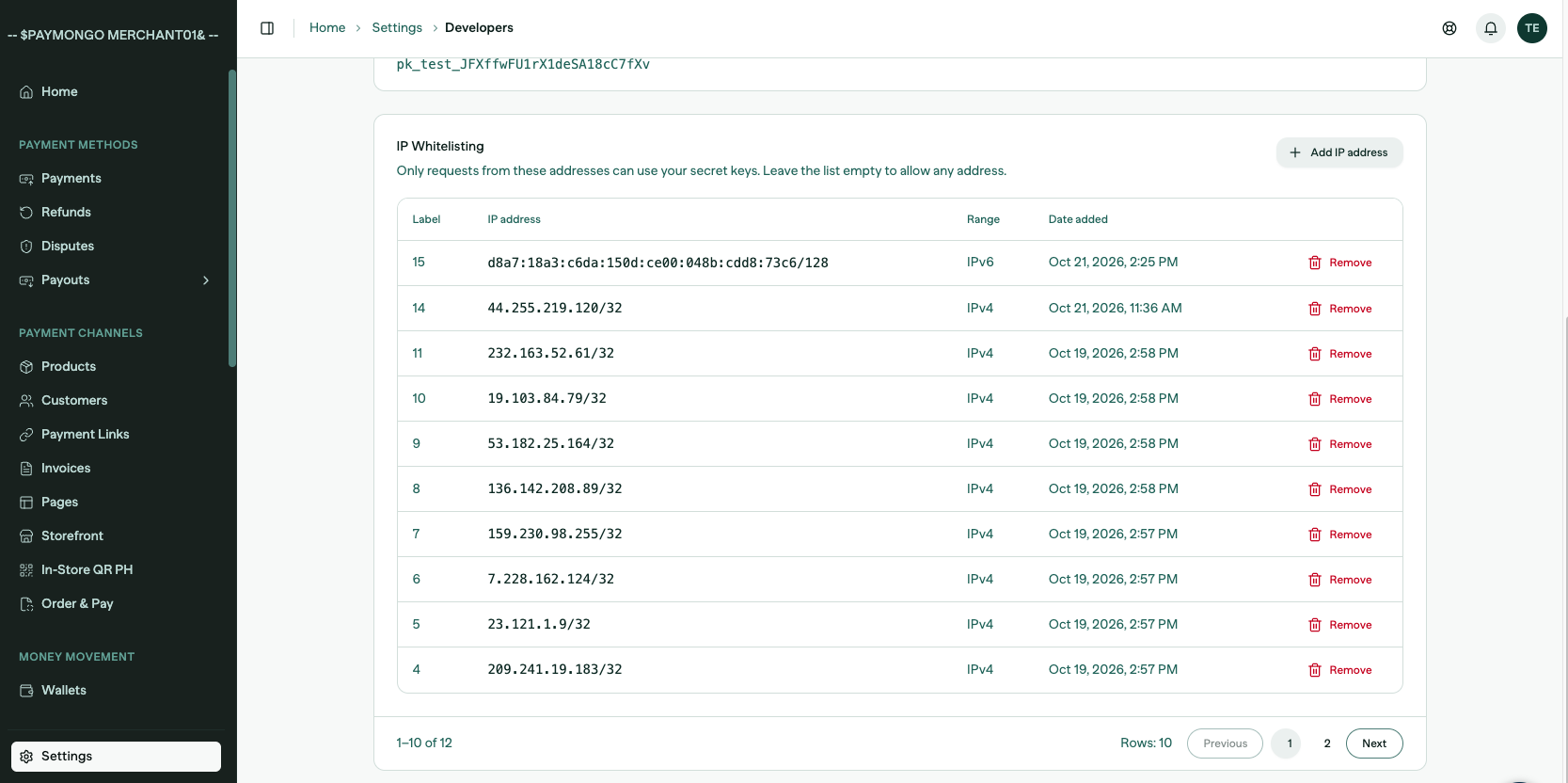
The table shows each entry’s:
- Label
- IP address
- Range: whether it’s IPv4 or IPv6
- Date added
The newest entries appear first, 10 per page. Use Previous, Next or the page numbers to move through the list.
Remove an IP address
- In IP Whitelisting, find the entry and click Remove.
- Confirm in the dialog.
Requests from that address stop working with your secret key right away. If it was your last address, requests from any address can use your secret key again.
Best practices
- Add every server first. Include production, staging, CI runners and any worker that calls the API. A server you forget is rejected the moment the list turns on.
- Use fixed outbound addresses. If your servers’ public IP changes, your requests will start failing. Ask your hosting provider for a static outbound IP.
- Use a range for a fleet. If your servers share a network, a CIDR range such as 203.0.113.0/24 can replace many single entries.
- Label every entry. It’s how you’ll know which address to remove later.
- Review the list regularly. Remove addresses for servers you’ve retired.
Troubleshooting
My requests are being rejected.
Check that the server’s public IP is in the list. Run a request from that server to see the address it uses, or ask your hosting provider. If it’s missing, ask the account owner to add it.
I can’t add or remove addresses.
Only the account owner can make changes. Ask them to do it, or to share the update with you.
It says the address is invalid.
Enter a valid IPv4 or IPv6 address, or a range with a slash, such as 203.0.113.0/24.
It says the address is already allowed.
It’s already in the list. A single address and its /32 form count as the same entry.
Updated 1 day ago